

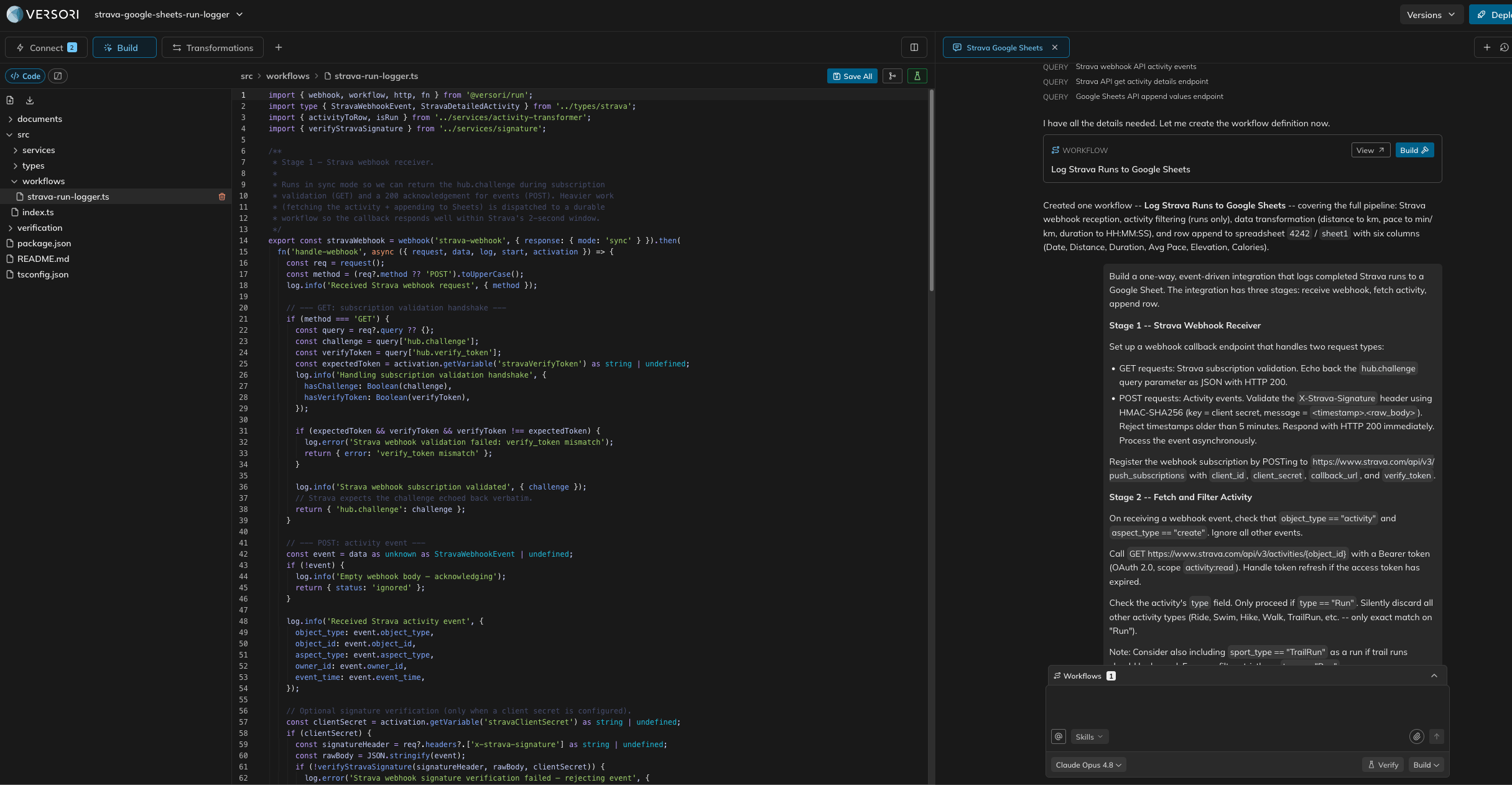
One chat covers planning and building, with a Plan/Build toggle next to the message box
The Plan / Build toggle
Next to the send button is a toggle that decides which agent handles your next message:- Plan: The planning agent researches your systems and requirements. It searches API documentation, writes research documents, identifies the systems that need connecting, and defines workflow specifications.
- Build: The coding agent implements your integration. It reads the research and workflow specifications produced during planning, then writes and edits the workflow code.
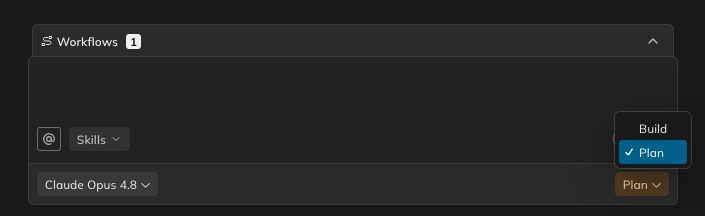
Set the toggle before sending to choose which agent handles your message
Why one conversation?
When planning and building lived in separate chats, it was tempting to plan the entire integration upfront — every workflow researched and specified before any code was written. In practice, plans made that far ahead quickly went stale: decisions made while building the first workflow (an API limitation discovered during testing, a change to how records are matched) invalidated assumptions in workflows planned weeks earlier, and the planning documents drifted out of date as the build progressed. Bringing both agents into one conversation removes that gap. The planning agent sees what has actually been built and tested so far, so each new workflow is planned against the real state of the integration rather than against assumptions made at the start. Plans stay accurate because they are made just before they are needed.Working iteratively
This is why the recommended way to work is one workflow at a time, rather than planning everything upfront:- Plan a workflow: With the toggle set to Plan, describe what you want. The agent researches the APIs and produces a workflow specification.
- Build it: Switch the toggle to Build and ask the agent to implement the workflow. It automatically reads the research documents and workflow specification from the planning turns, so you don’t need to repeat any context.
- Plan the next one: Once the workflow is built and tested, switch back to Plan and scope the next workflow.
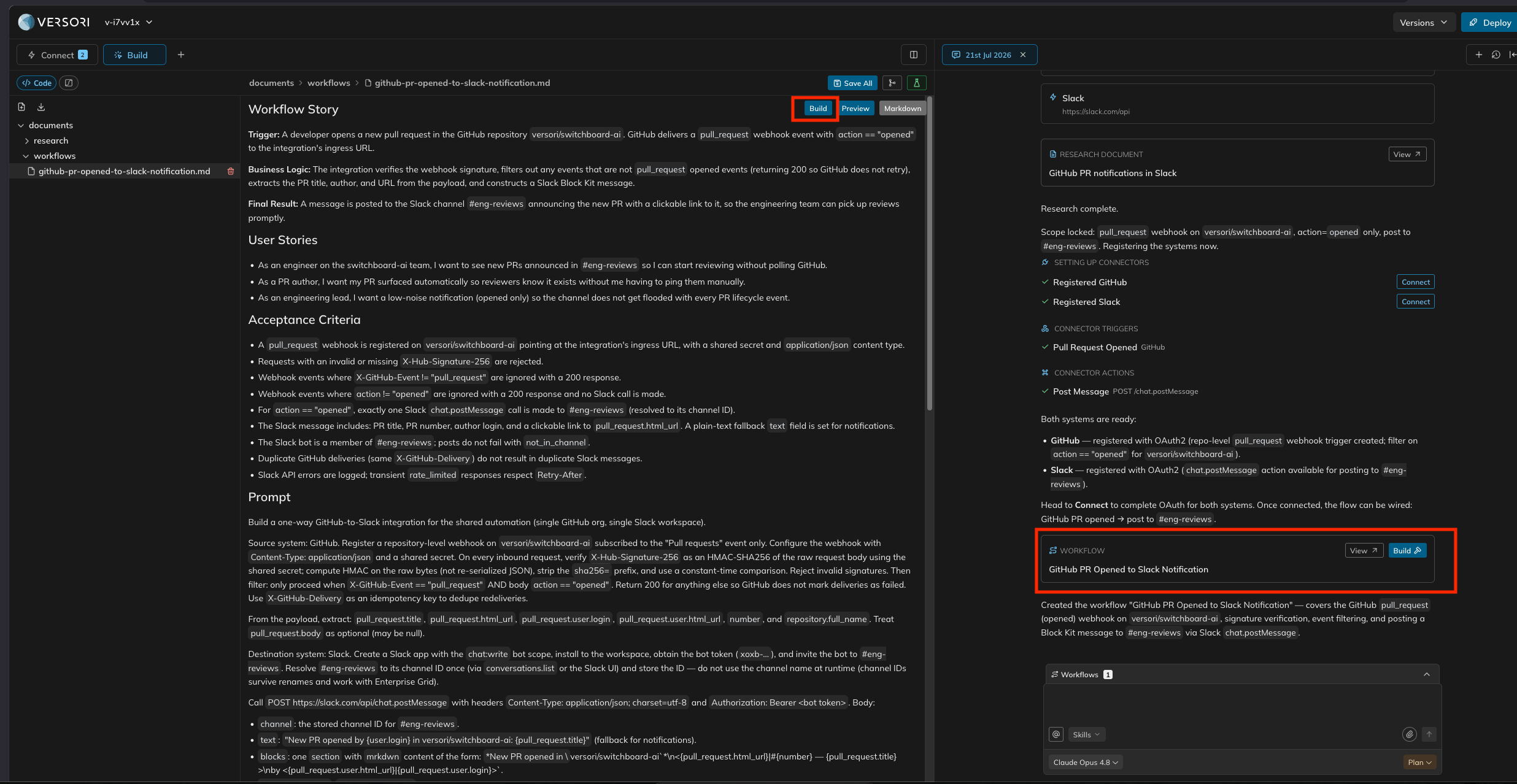
Use a workflow card's Build button to move straight from planning to implementation
Answering questions
While planning, the agent may pause to ask clarifying questions when it needs information it can’t find on its own — for example, how records should be matched, or which authentication method to use. Answer the questions to continue; the toggle is locked until the pending questions are resolved, since your answers go back to the planning agent.Verifying your work
When the toggle is set to Build, a Verify button (flask icon) appears next to the message box. Use it to run your integration in a sandbox and check that the code behaves as expected before deploying.Managing chats
The chat toolbar lets you start new conversations and switch between existing ones:- New chat (+ button): Start a fresh conversation. New chats always support both planning and building.
- Chat history: Open the history panel to switch between past conversations. Each entry is labelled by its kind — Plan, Build, or a combined chat.
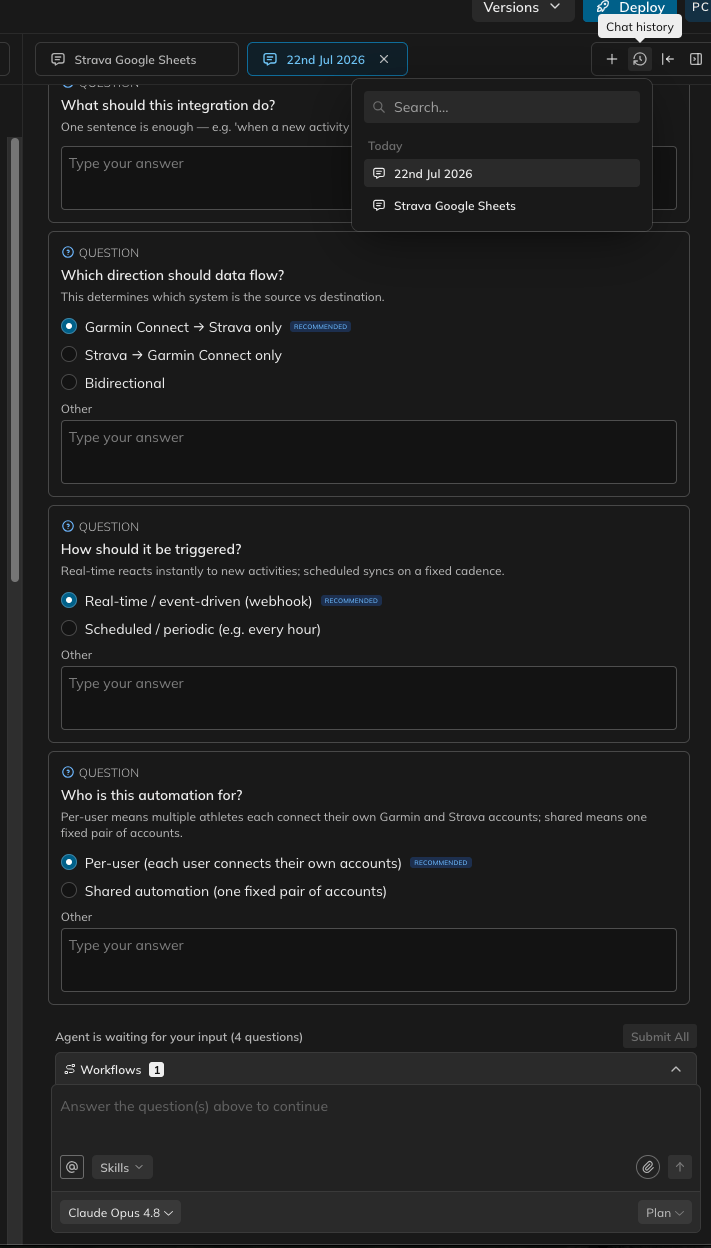
Switch between conversations from the chat history panel
Chats created before planning and building were unified remain readable in your history, but they stay in their
original mode. Some older projects may still see separate Plan and Build chats; new projects always get the single
combined chat.
Composer features
The message box supports the same context tools in both modes:- @ mentions: Use the @ button to reference a specific file or asset in your prompt.
- Attachments: Attach supporting material such as API documentation, screenshots, or example payloads.
- Model selection: Choose which model handles your request. The available models differ between Plan and Build modes.
- Question mode: Ask the agent about your integration without making changes to the code.
What to do next
- Learn what the planning agent researches and produces in Starting your plan.
- See how to implement, test, and iterate on workflows in Building your integration.