An embedded connector allows external users — people outside your organisation — to authenticate with their own
credentials when using your integration. Instead of storing a single set of credentials, the connector defines the
required authentication method and delegates credential management to each individual user.This is the foundation for building multi-tenant integrations where many customers connect to the same integration
independently, each with their own accounts and permissions in the target system.
A standard connector stores credentials that you provide directly. When the integration runs, it authenticates using
those fixed credentials on your behalf.An embedded connector works differently. You configure the authentication method (for example, OAuth2 or API Key) but no
credentials are provided. Each external user then supplies their own credentials when they activate the integration,
either through the Users tab in the platform or via your own application using the Versori APIs.
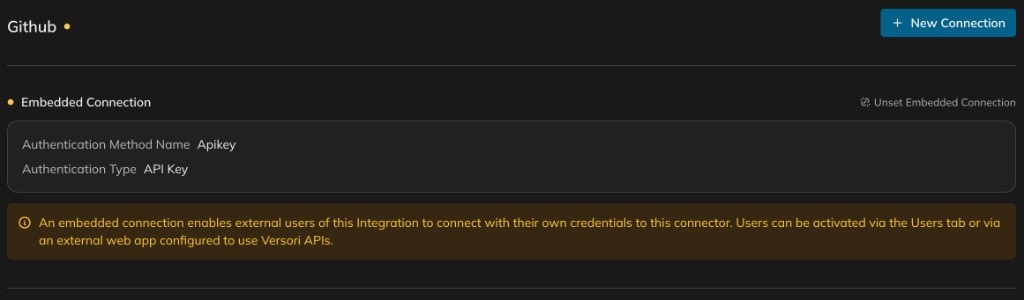
An embedded connection defines the authentication method without storing credentials — each user connects independently
Embedded connectors are the right choice whenever your integration needs to operate on behalf of multiple independent
users or organisations. Common scenarios include:
You are building a product that offers integrations to your customers. Each customer connects their own account — for
example, their own Salesforce instance or Slack workspace — rather than sharing a single set of credentials controlled
by you.
You publish integrations that partners or third-party users can adopt. Each partner activates the integration with their
own credentials, keeping their data isolated from other users.
Your platform serves multiple tenants, each of which needs to push or pull data from external systems using their own
API keys or OAuth tokens. Embedded connectors ensure that each tenant’s credentials are scoped to their own activation.
If your integration only needs to run with a single set of credentials that you control, a standard connection is
simpler. Switch to an embedded connector when external users need to authenticate independently.
You enable embedded mode when creating a connection for a connector. The process follows the same steps as creating a
standard connection, with one key difference: you toggle Embedded Connection on, which removes the credential
fields.
1
Open the connector and start a new connection
Navigate to the Connect tab, select the connector, and click + New Connection.
2
Configure the authentication method
Choose the authentication type that the target API requires (for example, API Key or OAuth2). Fill in the auth method
fields — such as the header name and insertion point for an API Key — and click Create.
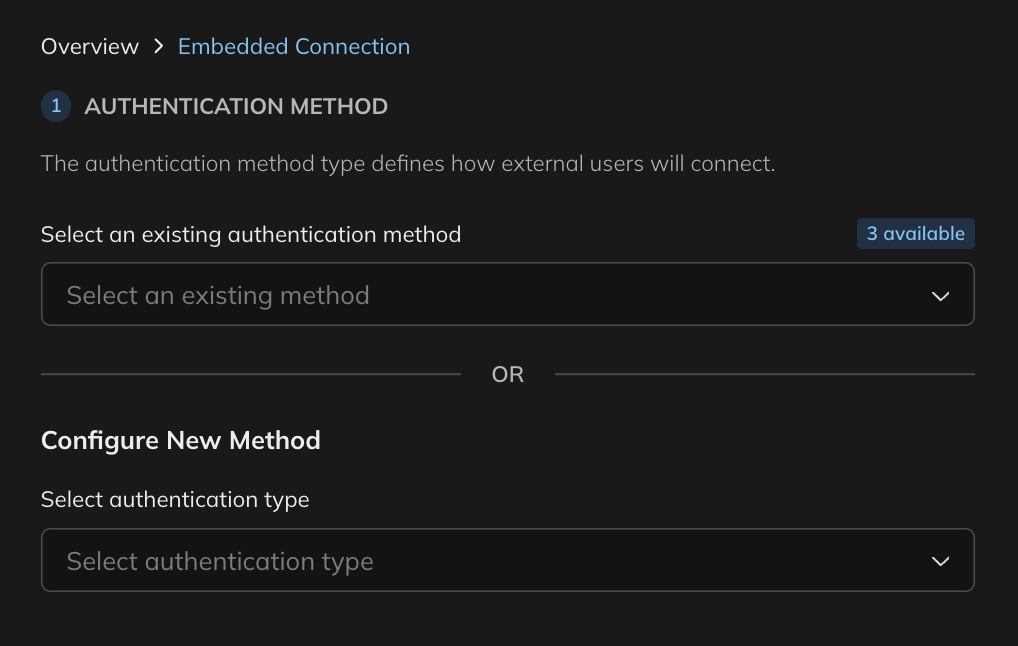
Select the authentication method that external users will use when they activate
3
Enable embedded mode
In the Connection section, toggle Embedded Connection on. The credential input fields disappear because each
user will supply their own credentials at activation time.
4
Save the embedded connection
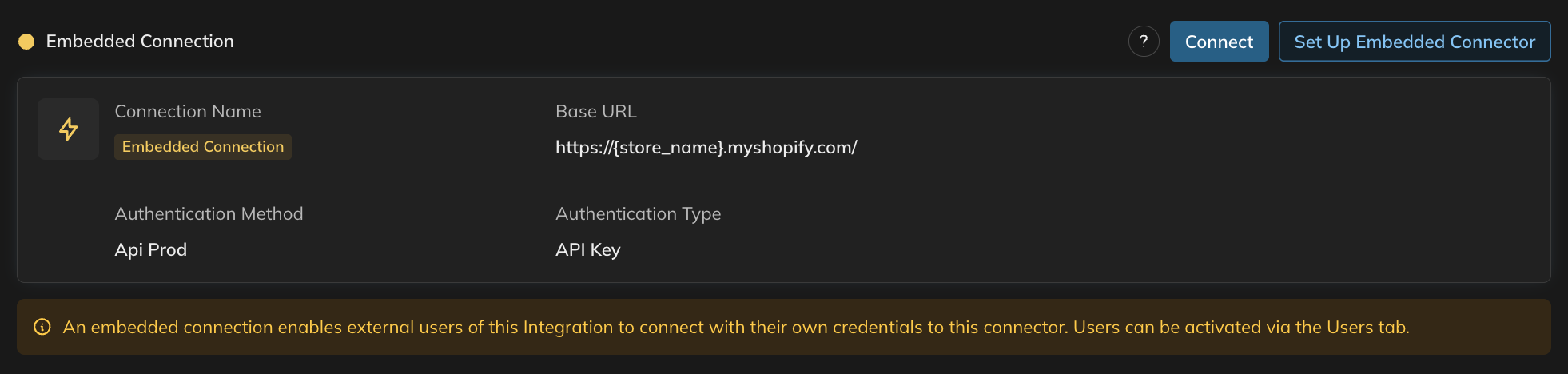
Click Connect to create the embedded connection. The connector is now ready to accept external users.
The embedded connector overview confirms the authentication method and indicates that external users connect independently
An embedded connection does not function until at least one external user has been activated. Activate users through
the Users tab or programmatically via the Versori APIs.
Learn how to design integrations that serve multiple tenants with isolated credentials and data.
Connecting guide
See the full guide on creating connections, including standard and bypassed authentication.
⌘I
{"docsConfig":{"theme":"almond","$schema":"https://mintlify.com/docs.json","name":"Versori User Documentation","colors":{"primary":"#6EB0D8","light":"#6EB0D8","dark":"#6EB0D8"},"logo":{"light":"https://mintcdn.com/versori/PWNCaMS5nGiiWoff/logo/versori-logo-wordmark.svg?fit=max\u0026auto=format\u0026n=PWNCaMS5nGiiWoff\u0026q=85\u0026s=be10819ca139d000a6edaef35334c0af","dark":"https://mintcdn.com/versori/PWNCaMS5nGiiWoff/logo/versori-logo-wordmark-white.svg?fit=max\u0026auto=format\u0026n=PWNCaMS5nGiiWoff\u0026q=85\u0026s=1568a99dadb6fa8dfc83009eba877497"},"favicon":"https://mintcdn.com/versori/PWNCaMS5nGiiWoff/logo/versori-logo.svg?fit=max\u0026auto=format\u0026n=PWNCaMS5nGiiWoff\u0026q=85\u0026s=1765cb3e4363526dd85cf7c576a8f68f","api":{"openapi":["openapi/connect-api-v1.yaml","openapi/embedded-api-v1.yaml","openapi/organisations-api-v1.yaml","openapi/switchboard-api-v1alpha1.yaml","openapi/platform-api.yaml"],"playground":{"display":"interactive","proxy":false},"mdx":{"auth":{"method":"bearer","name":"Authorization"},"server":["https://platform.versori.com/api"]}},"background":{"decoration":"gradient","color":{"light":"#ffffff","dark":"#151919"}},"search":{"prompt":"Search the docs..."},"interaction":{"drilldown":false},"styling":{"latex":false},"navigation":{"pages":[]}},"deployment":{"deploymentMetadataValue":{"subdomain":"versori","hasAudioNarration":false,"actualSubdomain":"versori","customDomains":["docs.versori.com"],"gitSource":{"type":"github","owner":"versori","repo":"user-docs","deployBranch":"main","contentDirectory":"","isPrivate":true,"mountPath":"","label":""},"chroma":{"liveDeploymentHistoryId":"6ad09d9413e5d952c6a7407c","collectionId":"314b2d25-0631-41c2-aeae-fdf8104d942c","schemaVersion":"v3","latestBuiltDeploymentHistoryId":"6ad09d9413e5d952c6a7407c"},"entitlements":{"AI_CHAT":{"status":"ENABLED"},"WEB_MCP":{"status":"ENABLED"},"NARRATION":{"status":"ENABLED"}},"buildId":"6ad09d9413e5d952c6a7407c","clientVersion":"0.0.3964","searchFilterCounts":[{"language":"default","tag":"API Reference","count":525},{"language":"default","tag":"Platform API","count":115},{"language":"default","tag":"Switchboard API","count":82},{"language":"default","tag":"Endpoints","count":62},{"language":"default","tag":"Connect API","count":41},{"language":"default","tag":"Organisations API","count":38},{"language":"default","tag":"Documentation","count":32},{"language":"default","tag":"projects","count":32},{"language":"default","tag":"User Guide","count":31},{"language":"default","tag":"CLI","count":27}]},"assistantConfig":{},"hasChatPermissions":true,"hasWebMcpPermissions":true,"toggles":[{"name":"kill-isr","enabled":true,"variant":{"name":"disabled","enabled":false,"feature_enabled":true},"impressionData":false},{"name":"agent-mintlify-slack","enabled":true,"variant":{"name":"disabled","enabled":false,"feature_enabled":true},"impressionData":false},{"name":"editor-v7-file-tree","enabled":true,"variant":{"name":"disabled","enabled":false,"feature_enabled":true},"impressionData":false},{"name":"agent-integrations-settings","enabled":true,"variant":{"name":"disabled","enabled":false,"feature_enabled":true},"impressionData":false},{"name":"automations-pr-grouping","enabled":true,"variant":{"name":"disabled","enabled":false,"feature_enabled":true},"impressionData":false},{"name":"custom-prefix","enabled":true,"variant":{"name":"disabled","enabled":false,"feature_enabled":true},"impressionData":false},{"name":"analytics-v7","enabled":true,"variant":{"name":"disabled","enabled":false,"feature_enabled":true},"impressionData":false},{"name":"user-flows-analytics","enabled":true,"variant":{"name":"disabled","enabled":false,"feature_enabled":true},"impressionData":false},{"name":"no-publish-flow","enabled":true,"variant":{"name":"disabled","enabled":false,"feature_enabled":true},"impressionData":false},{"name":"workos-onboarding","enabled":true,"variant":{"name":"disabled","enabled":false,"feature_enabled":true},"impressionData":false},{"name":"llms-txt-v2","enabled":true,"variant":{"name":"disabled","enabled":false,"feature_enabled":true},"impressionData":false},{"name":"pause-universal-search-reconcile","enabled":true,"variant":{"name":"disabled","enabled":false,"feature_enabled":true},"impressionData":false},{"name":"snapshot-serving-live","enabled":true,"variant":{"name":"disabled","enabled":false,"feature_enabled":true},"impressionData":false},{"name":"stripTemperatureMiddleware","enabled":true,"variant":{"name":"disabled","enabled":false,"feature_enabled":true},"impressionData":false},{"name":"per-site-search-delta","enabled":true,"variant":{"name":"disabled","enabled":false,"feature_enabled":true},"impressionData":false},{"name":"support-platform-pylon-zendesk","enabled":true,"variant":{"name":"disabled","enabled":false,"feature_enabled":true},"impressionData":false},{"name":"snapshot-serving","enabled":true,"variant":{"name":"disabled","enabled":false,"feature_enabled":true},"impressionData":false},{"name":"instant-rollback","enabled":true,"variant":{"name":"disabled","enabled":false,"feature_enabled":true},"impressionData":false},{"name":"granular-notifications-server","enabled":true,"variant":{"name":"disabled","enabled":false,"feature_enabled":true},"impressionData":false},{"name":"granular-notifications","enabled":true,"variant":{"name":"disabled","enabled":false,"feature_enabled":true},"impressionData":false},{"name":"editor-private-page-search","enabled":true,"variant":{"name":"disabled","enabled":false,"feature_enabled":true},"impressionData":false},{"name":"automations-fable","enabled":true,"variant":{"name":"disabled","enabled":false,"feature_enabled":true},"impressionData":false},{"name":"fixed-ai-action-pricing","enabled":true,"variant":{"name":"disabled","enabled":false,"feature_enabled":true},"impressionData":false},{"name":"automation-resolve-merge-conflict","enabled":true,"variant":{"name":"disabled","enabled":false,"feature_enabled":true},"impressionData":false},{"name":"scoped-publishing","enabled":true,"variant":{"name":"disabled","enabled":false,"feature_enabled":true},"impressionData":false},{"name":"mintql","enabled":true,"variant":{"name":"disabled","enabled":false,"feature_enabled":true},"impressionData":false},{"name":"page-level-analytics","enabled":true,"variant":{"name":"disabled","enabled":false,"feature_enabled":true},"impressionData":false},{"name":"editor-version-history-v2","enabled":true,"variant":{"name":"disabled","enabled":false,"feature_enabled":true},"impressionData":false},{"name":"editor-nav-generations","enabled":true,"variant":{"name":"disabled","enabled":false,"feature_enabled":true},"impressionData":false},{"name":"billing-page-v2","enabled":true,"variant":{"name":"disabled","enabled":false,"feature_enabled":true},"impressionData":false},{"name":"workspace-projects","enabled":true,"variant":{"name":"disabled","enabled":false,"feature_enabled":true},"impressionData":false},{"name":"assistant-v5","enabled":true,"variant":{"name":"disabled","enabled":false,"feature_enabled":true},"impressionData":false},{"name":"byok-sep-25","enabled":true,"variant":{"name":"disabled","enabled":false,"feature_enabled":true},"impressionData":false},{"name":"fork-pr-previews","enabled":true,"variant":{"name":"disabled","enabled":false,"feature_enabled":true},"impressionData":false},{"name":"revalidation-jwt","enabled":true,"variant":{"name":"disabled","enabled":false,"feature_enabled":true},"impressionData":false},{"name":"vite-origin","enabled":true,"variant":{"name":"disabled","enabled":false,"feature_enabled":true},"impressionData":false},{"name":"editor-agent-model-picker","enabled":true,"variant":{"name":"disabled","enabled":false,"feature_enabled":true},"impressionData":false},{"name":"billing-updated-9-15","enabled":true,"variant":{"name":"disabled","enabled":false,"feature_enabled":true},"impressionData":false},{"name":"hobby-abuse-scan","enabled":true,"variant":{"name":"disabled","enabled":false,"feature_enabled":true},"impressionData":false},{"name":"dashboard-inbox","enabled":true,"variant":{"name":"disabled","enabled":false,"feature_enabled":true},"impressionData":false}],"isAtlas":false,"googleFontsInlined":true},"customCss":[{"filePath":"style.css","content":"#content-area.max-w-xl{max-width:64rem}.whitespace-pre-line{white-space:unset}"}],"page":{"pagePath":"latest/guides/getting-started/connect/embedded-connectors","slug":"/latest/guides/getting-started/connect/embedded-connectors","pageMetadata":{"title":"Embedded connectors","sidebarTitle":"Embedded connectors","description":null,"href":"/latest/guides/getting-started/connect/embedded-connectors"},"pageType":"default","mdx":{"mdxSource":{"compiledSource":"\"use strict\";const{Fragment:_Fragment,jsx:_jsx,jsxs:_jsxs}=arguments[0];const{useMDXComponents:_provideComponents}=arguments[0];function _createMdxContent(props){const _components={p:`p`,strong:`strong`,tbody:`tbody`,td:`td`,th:`th`,thead:`thead`,tr:`tr`,..._provideComponents(),...props.components},{Card,CardGroup,Frame,Heading,OptimizedImage,Step,Steps,Table,Tip,Warning}=_components;if(!Card)_missingMdxReference(`Card`,true);if(!CardGroup)_missingMdxReference(`CardGroup`,true);if(!Frame)_missingMdxReference(`Frame`,true);if(!Heading)_missingMdxReference(`Heading`,true);if(!OptimizedImage)_missingMdxReference(`OptimizedImage`,true);if(!Step)_missingMdxReference(`Step`,true);if(!Steps)_missingMdxReference(`Steps`,true);if(!Table)_missingMdxReference(`Table`,true);if(!Tip)_missingMdxReference(`Tip`,true);if(!Warning)_missingMdxReference(`Warning`,true);return _jsxs(_Fragment,{children:[_jsx(_components.p,{children:`An embedded connector allows external users — people outside your organisation — to authenticate with their own\ncredentials when using your integration. Instead of storing a single set of credentials, the connector defines the\nrequired authentication method and delegates credential management to each individual user.`}),`\n`,_jsxs(_components.p,{children:[`This is the foundation for building `,_jsx(_components.strong,{children:`multi-tenant integrations`}),` where many customers connect to the same integration\nindependently, each with their own accounts and permissions in the target system.`]}),`\n`,_jsx(Heading,{level:`2`,id:`how-embedded-connectors-work`,children:`How embedded connectors work`}),`\n`,_jsx(_components.p,{children:`A standard connector stores credentials that you provide directly. When the integration runs, it authenticates using\nthose fixed credentials on your behalf.`}),`\n`,_jsxs(_components.p,{children:[`An embedded connector works differently. You configure the authentication method (for example, OAuth2 or API Key) but no\ncredentials are provided. Each external user then supplies their own credentials when they activate the integration,\neither through the `,_jsx(_components.strong,{children:`Users`}),` tab in the platform or via your own application using the Versori APIs.`]}),`\n`,_jsx(Frame,{caption:`An embedded connection defines the authentication method without storing credentials — each user connects independently`,children:_jsx(OptimizedImage,{src:`https://mintcdn.com/versori/c6vWqYMEOXL2DTKb/images/guides/connect/embedded-connection-001.png?fit=max\u0026auto=format\u0026n=c6vWqYMEOXL2DTKb\u0026q=85\u0026s=a145e05bc915c4603c5b2403a86df08e`,alt:`Embedded Connection view showing Authentication Method Name Apikey, Authentication Type API Key, and an info banner explaining that external users connect with their own credentials via the Users tab or Versori APIs`,\"data-og-width\":`1024`,width:`1024`,\"data-og-height\":`300`,height:`300`,\"data-path\":`images/guides/connect/embedded-connection-001.png`,\"data-optimize\":`true`,\"data-opv\":`3`,srcset:`https://mintcdn.com/versori/c6vWqYMEOXL2DTKb/images/guides/connect/embedded-connection-001.png?w=280\u0026fit=max\u0026auto=format\u0026n=c6vWqYMEOXL2DTKb\u0026q=85\u0026s=9b52dca9f0ccc45981b1e43e6af43715 280w, https://mintcdn.com/versori/c6vWqYMEOXL2DTKb/images/guides/connect/embedded-connection-001.png?w=560\u0026fit=max\u0026auto=format\u0026n=c6vWqYMEOXL2DTKb\u0026q=85\u0026s=42eedeacd3c536666156817f56ed392e 560w, https://mintcdn.com/versori/c6vWqYMEOXL2DTKb/images/guides/connect/embedded-connection-001.png?w=840\u0026fit=max\u0026auto=format\u0026n=c6vWqYMEOXL2DTKb\u0026q=85\u0026s=079b6416c8540351906f9d06cf5c5071 840w, https://mintcdn.com/versori/c6vWqYMEOXL2DTKb/images/guides/connect/embedded-connection-001.png?w=1100\u0026fit=max\u0026auto=format\u0026n=c6vWqYMEOXL2DTKb\u0026q=85\u0026s=05f8f31bdecf767756ef2ecafd193538 1100w, https://mintcdn.com/versori/c6vWqYMEOXL2DTKb/images/guides/connect/embedded-connection-001.png?w=1650\u0026fit=max\u0026auto=format\u0026n=c6vWqYMEOXL2DTKb\u0026q=85\u0026s=b15962435f99179897e757face131f8f 1650w, https://mintcdn.com/versori/c6vWqYMEOXL2DTKb/images/guides/connect/embedded-connection-001.png?w=2500\u0026fit=max\u0026auto=format\u0026n=c6vWqYMEOXL2DTKb\u0026q=85\u0026s=8f730e2403a39b96810d1ab937f26f53 2500w`})}),`\n`,_jsxs(Table,{children:[_jsx(_components.thead,{children:_jsxs(_components.tr,{children:[_jsx(_components.th,{}),_jsx(_components.th,{children:`Standard connector`}),_jsx(_components.th,{children:`Embedded connector`})]})}),_jsxs(_components.tbody,{children:[_jsxs(_components.tr,{children:[_jsx(_components.td,{children:_jsx(_components.strong,{children:`Credentials`})}),_jsx(_components.td,{children:`Stored directly by you`}),_jsx(_components.td,{children:`Provided by each external user at activation time`})]}),_jsxs(_components.tr,{children:[_jsx(_components.td,{children:_jsx(_components.strong,{children:`Tenant model`})}),_jsx(_components.td,{children:`Single-tenant`}),_jsx(_components.td,{children:`Multi-tenant`})]}),_jsxs(_components.tr,{children:[_jsx(_components.td,{children:_jsx(_components.strong,{children:`User activation`})}),_jsx(_components.td,{children:`Immediate — ready once created`}),_jsx(_components.td,{children:`Users activate via the Users tab or Versori APIs`})]}),_jsxs(_components.tr,{children:[_jsx(_components.td,{children:_jsx(_components.strong,{children:`Typical audience`})}),_jsx(_components.td,{children:`Internal teams`}),_jsx(_components.td,{children:`External customers, partners, or end users`})]})]})]}),`\n`,_jsx(Heading,{level:`2`,id:`when-to-use-an-embedded-connector`,children:`When to use an embedded connector`}),`\n`,_jsx(_components.p,{children:`Embedded connectors are the right choice whenever your integration needs to operate on behalf of multiple independent\nusers or organisations. Common scenarios include:`}),`\n`,_jsx(Heading,{level:`3`,id:`customer-facing-integrations`,children:`Customer-facing integrations`}),`\n`,_jsx(_components.p,{children:`You are building a product that offers integrations to your customers. Each customer connects their own account — for\nexample, their own Salesforce instance or Slack workspace — rather than sharing a single set of credentials controlled\nby you.`}),`\n`,_jsx(Heading,{level:`3`,id:`marketplace-or-partner-integrations`,children:`Marketplace or partner integrations`}),`\n`,_jsx(_components.p,{children:`You publish integrations that partners or third-party users can adopt. Each partner activates the integration with their\nown credentials, keeping their data isolated from other users.`}),`\n`,_jsx(Heading,{level:`3`,id:`multi-tenant-saas-platforms`,children:`Multi-tenant SaaS platforms`}),`\n`,_jsx(_components.p,{children:`Your platform serves multiple tenants, each of which needs to push or pull data from external systems using their own\nAPI keys or OAuth tokens. Embedded connectors ensure that each tenant’s credentials are scoped to their own activation.`}),`\n`,_jsx(Tip,{children:_jsx(_components.p,{children:`If your integration only needs to run with a single set of credentials that you control, a standard connection is\nsimpler. Switch to an embedded connector when external users need to authenticate independently.`})}),`\n`,_jsx(Heading,{level:`2`,id:`setting-up-an-embedded-connector`,children:`Setting up an embedded connector`}),`\n`,_jsxs(_components.p,{children:[`You enable embedded mode when creating a connection for a connector. The process follows the same steps as creating a\nstandard connection, with one key difference: you toggle `,_jsx(_components.strong,{children:`Embedded Connection`}),` on, which removes the credential\nfields.`]}),`\n`,_jsxs(Steps,{children:[_jsx(Step,{title:`Open the connector and start a new connection`,children:_jsxs(_components.p,{children:[`Navigate to the `,_jsx(_components.strong,{children:`Connect`}),` tab, select the connector, and click `,_jsx(_components.strong,{children:`+ New Connection`}),`.`]})}),_jsxs(Step,{title:`Configure the authentication method`,children:[_jsxs(_components.p,{children:[`Choose the authentication type that the target API requires (for example, API Key or OAuth2). Fill in the auth method\nfields — such as the header name and insertion point for an API Key — and click `,_jsx(_components.strong,{children:`Create`}),`.`]}),_jsx(Frame,{caption:`Select the authentication method that external users will use when they activate`,children:_jsx(OptimizedImage,{src:`https://mintcdn.com/versori/pH7QqH6iOJALtSUh/images/guides/connect/embedded-auth-selection.png?fit=max\u0026auto=format\u0026n=pH7QqH6iOJALtSUh\u0026q=85\u0026s=3817641ea7065f384b11eec9bfd8af45`,alt:`Authentication method selection showing available options for an embedded connector`,\"data-og-width\":`1018`,width:`1018`,\"data-og-height\":`646`,height:`646`,\"data-path\":`images/guides/connect/embedded-auth-selection.png`,\"data-optimize\":`true`,\"data-opv\":`3`,srcset:`https://mintcdn.com/versori/pH7QqH6iOJALtSUh/images/guides/connect/embedded-auth-selection.png?w=280\u0026fit=max\u0026auto=format\u0026n=pH7QqH6iOJALtSUh\u0026q=85\u0026s=c265e9dd458a1ff8676dc079d24bf081 280w, https://mintcdn.com/versori/pH7QqH6iOJALtSUh/images/guides/connect/embedded-auth-selection.png?w=560\u0026fit=max\u0026auto=format\u0026n=pH7QqH6iOJALtSUh\u0026q=85\u0026s=62b179b64883ce16c0a28d15888ac6e3 560w, https://mintcdn.com/versori/pH7QqH6iOJALtSUh/images/guides/connect/embedded-auth-selection.png?w=840\u0026fit=max\u0026auto=format\u0026n=pH7QqH6iOJALtSUh\u0026q=85\u0026s=3b356648e62e7b9abd94b63ee8d6847a 840w, https://mintcdn.com/versori/pH7QqH6iOJALtSUh/images/guides/connect/embedded-auth-selection.png?w=1100\u0026fit=max\u0026auto=format\u0026n=pH7QqH6iOJALtSUh\u0026q=85\u0026s=5924c4c625f0dddd0c699bc5a8e1cd82 1100w, https://mintcdn.com/versori/pH7QqH6iOJALtSUh/images/guides/connect/embedded-auth-selection.png?w=1650\u0026fit=max\u0026auto=format\u0026n=pH7QqH6iOJALtSUh\u0026q=85\u0026s=9197df6956c14e5157a469a791c69653 1650w, https://mintcdn.com/versori/pH7QqH6iOJALtSUh/images/guides/connect/embedded-auth-selection.png?w=2500\u0026fit=max\u0026auto=format\u0026n=pH7QqH6iOJALtSUh\u0026q=85\u0026s=9ced557117d8cacc60dac5f8b2b5e2be 2500w`})})]}),_jsx(Step,{title:`Enable embedded mode`,children:_jsxs(_components.p,{children:[`In the `,_jsx(_components.strong,{children:`Connection`}),` section, toggle `,_jsx(_components.strong,{children:`Embedded Connection`}),` on. The credential input fields disappear because each\nuser will supply their own credentials at activation time.`]})}),_jsxs(Step,{title:`Save the embedded connection`,children:[_jsxs(_components.p,{children:[`Click `,_jsx(_components.strong,{children:`Connect`}),` to create the embedded connection. The connector is now ready to accept external users.`]}),_jsx(Frame,{caption:`The embedded connector overview confirms the authentication method and indicates that external users connect independently`,children:_jsx(OptimizedImage,{src:`https://mintcdn.com/versori/pH7QqH6iOJALtSUh/images/guides/connect/embedded-connector.png?fit=max\u0026auto=format\u0026n=pH7QqH6iOJALtSUh\u0026q=85\u0026s=e834c3432a4b1a850a861945fc57b29d`,alt:`Embedded Connector overview showing the configured authentication method without stored credentials`,\"data-og-width\":`1962`,width:`1962`,\"data-og-height\":`468`,height:`468`,\"data-path\":`images/guides/connect/embedded-connector.png`,\"data-optimize\":`true`,\"data-opv\":`3`,srcset:`https://mintcdn.com/versori/pH7QqH6iOJALtSUh/images/guides/connect/embedded-connector.png?w=280\u0026fit=max\u0026auto=format\u0026n=pH7QqH6iOJALtSUh\u0026q=85\u0026s=7520f9fc374097fcae3fbce5cf0e850f 280w, https://mintcdn.com/versori/pH7QqH6iOJALtSUh/images/guides/connect/embedded-connector.png?w=560\u0026fit=max\u0026auto=format\u0026n=pH7QqH6iOJALtSUh\u0026q=85\u0026s=cef8b0ed78f6f996fcf853edacc68b6c 560w, https://mintcdn.com/versori/pH7QqH6iOJALtSUh/images/guides/connect/embedded-connector.png?w=840\u0026fit=max\u0026auto=format\u0026n=pH7QqH6iOJALtSUh\u0026q=85\u0026s=8b6e08ed6b49d09980157fda6eeba2c7 840w, https://mintcdn.com/versori/pH7QqH6iOJALtSUh/images/guides/connect/embedded-connector.png?w=1100\u0026fit=max\u0026auto=format\u0026n=pH7QqH6iOJALtSUh\u0026q=85\u0026s=afe921981fb482f6238de2d1991e305c 1100w, https://mintcdn.com/versori/pH7QqH6iOJALtSUh/images/guides/connect/embedded-connector.png?w=1650\u0026fit=max\u0026auto=format\u0026n=pH7QqH6iOJALtSUh\u0026q=85\u0026s=f27536330e76070fcdc119b158298c69 1650w, https://mintcdn.com/versori/pH7QqH6iOJALtSUh/images/guides/connect/embedded-connector.png?w=2500\u0026fit=max\u0026auto=format\u0026n=pH7QqH6iOJALtSUh\u0026q=85\u0026s=27efb860632a5d4af82656c85c072539 2500w`})})]})]}),`\n`,_jsx(Warning,{children:_jsxs(_components.p,{children:[`An embedded connection does not function until at least one external user has been activated. Activate users through\nthe `,_jsx(_components.strong,{children:`Users`}),` tab or programmatically via the Versori APIs.`]})}),`\n`,_jsx(Heading,{level:`2`,id:`next-steps`,children:`Next steps`}),`\n`,_jsxs(CardGroup,{cols:2,children:[_jsx(Card,{title:`Multi-tenant integrations`,icon:`users`,href:`/latest/guides/use-cases/multi-tenancy`,children:_jsx(_components.p,{children:`Learn how to design integrations that serve multiple tenants with isolated credentials and data.`})}),_jsx(Card,{title:`Connecting guide`,icon:`plug`,href:`/latest/guides/getting-started/connect`,children:_jsx(_components.p,{children:`See the full guide on creating connections, including standard and bypassed authentication.`})})]})]})}function MDXContent(props={}){const{wrapper:MDXLayout}={..._provideComponents(),...props.components};return MDXLayout?_jsx(MDXLayout,{...props,children:_jsx(_createMdxContent,{...props})}):_createMdxContent(props)}return{default:MDXContent};function _missingMdxReference(id,component){throw new Error(`Expected `+(component?`component`:`object`)+\" `\"+id+\"` to be defined: you likely forgot to import, pass, or provide it.\")}","frontmatter":{},"scope":{"config":{},"pageMetadata":{"title":"Embedded connectors","sidebarTitle":"Embedded connectors","description":null,"href":"/latest/guides/getting-started/connect/embedded-connectors"}}},"mdxSourceWithNoJs":null},"mdxExtracts":{"tableOfContents":[{"title":"How embedded connectors work","slug":"how-embedded-connectors-work","depth":2,"children":[]},{"title":"When to use an embedded connector","slug":"when-to-use-an-embedded-connector","depth":2,"children":[{"title":"Customer-facing integrations","slug":"customer-facing-integrations","depth":3,"children":[]},{"title":"Marketplace or partner integrations","slug":"marketplace-or-partner-integrations","depth":3,"children":[]},{"title":"Multi-tenant SaaS platforms","slug":"multi-tenant-saas-platforms","depth":3,"children":[]}]},{"title":"Setting up an embedded connector","slug":"setting-up-an-embedded-connector","depth":2,"children":[]},{"title":"Next steps","slug":"next-steps","depth":2,"children":[]}],"codeExamples":{}},"jsLinks":[],"subdomain":"versori","siteName":"Versori User Documentation","title":"Embedded connectors - Versori User Documentation","navMaps":{"firstHrefInVersion":{"Latest":{"href":"/latest/guides/getting-started/connect/embedded-connectors","matchLevel":0},"Legacy":{"href":"/legacy/welcome","matchLevel":4},"v2":{"href":"/v2/introduction","matchLevel":4}},"firstHrefInLanguage":{}},"lastModified":"2026-10-14T11:02:55.162Z","originalFileLocation":"latest/guides/getting-started/connect/embedded-connectors.mdx"},"headHtml":"\u003cscript data-mint-head>(function(){var d=document.documentElement,p=null;if(!p){try{p=localStorage.getItem(\"isDarkMode\")}catch(e){}if(p==='true')p='dark';else if(p==='false')p='light';if(p!=='light'\u0026\u0026p!=='dark'\u0026\u0026p!=='system')p=\"system\"}var r=p==='system'?(matchMedia(\"(prefers-color-scheme: dark)\").matches?'dark':'light'):p;d.classList.remove(r==='dark'?'light':'dark');d.classList.add(r);d.setAttribute(\"data-theme-preference\",p)})();\u003c/script>\u003cmeta data-mint-head name=\"application-name\" content=\"Versori User Documentation\">\u003cmeta data-mint-head name=\"generator\" content=\"Mintlify\">\u003clink data-mint-head rel=\"icon\" type=\"image/png\" sizes=\"192x192\" href=\"/mintlify-assets/_mintlify/favicons/versori/JHvcKEOb4limbJz2/_generated/favicon/android-chrome-192x192.png\" media=\"(prefers-color-scheme: light)\">\u003clink data-mint-head rel=\"apple-touch-icon\" type=\"image/png\" sizes=\"180x180\" href=\"/mintlify-assets/_mintlify/favicons/versori/JHvcKEOb4limbJz2/_generated/favicon/apple-touch-icon.png\">\u003clink data-mint-head rel=\"icon\" type=\"image/png\" sizes=\"16x16\" href=\"/mintlify-assets/_mintlify/favicons/versori/JHvcKEOb4limbJz2/_generated/favicon/favicon-16x16.png\" media=\"(prefers-color-scheme: light)\">\u003clink data-mint-head rel=\"icon\" type=\"image/png\" sizes=\"32x32\" href=\"/mintlify-assets/_mintlify/favicons/versori/JHvcKEOb4limbJz2/_generated/favicon/favicon-32x32.png\" media=\"(prefers-color-scheme: light)\">\u003clink data-mint-head rel=\"shortcut icon\" type=\"image/x-icon\" href=\"/mintlify-assets/_mintlify/favicons/versori/JHvcKEOb4limbJz2/_generated/favicon/favicon.ico\" media=\"(prefers-color-scheme: light)\">\u003clink data-mint-head rel=\"icon\" type=\"image/png\" sizes=\"192x192\" href=\"/mintlify-assets/_mintlify/favicons/versori/JHvcKEOb4limbJz2/_generated/favicon-dark/android-chrome-192x192.png\" media=\"(prefers-color-scheme: dark)\">\u003clink data-mint-head rel=\"icon\" type=\"image/png\" sizes=\"16x16\" href=\"/mintlify-assets/_mintlify/favicons/versori/JHvcKEOb4limbJz2/_generated/favicon-dark/favicon-16x16.png\" media=\"(prefers-color-scheme: dark)\">\u003clink data-mint-head rel=\"icon\" type=\"image/png\" sizes=\"32x32\" href=\"/mintlify-assets/_mintlify/favicons/versori/JHvcKEOb4limbJz2/_generated/favicon-dark/favicon-32x32.png\" media=\"(prefers-color-scheme: dark)\">\u003clink data-mint-head rel=\"shortcut icon\" type=\"image/x-icon\" href=\"/mintlify-assets/_mintlify/favicons/versori/JHvcKEOb4limbJz2/_generated/favicon-dark/favicon.ico\" media=\"(prefers-color-scheme: dark)\">\u003cmeta data-mint-head property=\"og:title\" content=\"Embedded connectors - Versori User Documentation\">\u003cmeta data-mint-head property=\"og:site_name\" content=\"Versori User Documentation\">\u003cmeta data-mint-head property=\"og:url\" content=\"https://docs.versori.com/latest/guides/getting-started/connect/embedded-connectors\">\u003cmeta data-mint-head property=\"og:type\" content=\"website\">\u003cmeta data-mint-head property=\"og:image\" content=\"https://versori.mintlify.app/_mintlify/api/og/v2?division=Connect\u0026amp;title=Embedded+connectors\u0026amp;theme=1ac70f2532992ffb34bd6aef\u0026amp;signature=7e0190c5f880c3cf2b4d527b163bc248994772a7ae229f161a463a16102d5b48\">\u003cmeta data-mint-head property=\"og:image:width\" content=\"1200\">\u003cmeta data-mint-head property=\"og:image:height\" content=\"630\">\u003cmeta data-mint-head name=\"twitter:card\" content=\"summary_large_image\">\u003cmeta data-mint-head name=\"twitter:title\" content=\"Embedded connectors - Versori User Documentation\">\u003cmeta data-mint-head name=\"twitter:image\" content=\"https://versori.mintlify.app/_mintlify/api/og/v2?division=Connect\u0026amp;title=Embedded+connectors\u0026amp;theme=1ac70f2532992ffb34bd6aef\u0026amp;signature=7e0190c5f880c3cf2b4d527b163bc248994772a7ae229f161a463a16102d5b48\">\u003cmeta data-mint-head name=\"twitter:image:width\" content=\"1200\">\u003cmeta data-mint-head name=\"twitter:image:height\" content=\"630\">\u003cmeta data-mint-head name=\"msapplication-config\" content=\"/mintlify-assets/_mintlify/favicons/versori/JHvcKEOb4limbJz2/_generated/favicon/browserconfig.xml\">\u003cmeta data-mint-head name=\"apple-mobile-web-app-title\" content=\"Versori User Documentation\">\u003cmeta data-mint-head name=\"msapplication-TileColor\" content=\"#6EB0D8\">\u003clink data-mint-head rel=\"canonical\" href=\"https://docs.versori.com/latest/guides/getting-started/connect/embedded-connectors\">\u003clink data-mint-head rel=\"alternate\" type=\"application/xml\" href=\"/sitemap.xml\">\u003clink data-mint-head rel=\"alternate\" type=\"text/markdown\" href=\"/latest/guides/getting-started/connect/embedded-connectors.md\">\u003cscript data-mint-head type=\"application/ld+json\">{\"@context\":\"https://schema.org\",\"@graph\":[{\"@type\":\"Organization\",\"@id\":\"https://docs.versori.com/#organization\",\"name\":\"Versori User Documentation\",\"url\":\"https://docs.versori.com\",\"logo\":{\"@type\":\"ImageObject\",\"url\":\"https://mintcdn.com/versori/PWNCaMS5nGiiWoff/logo/versori-logo-wordmark.svg?fit=max\u0026auto=format\u0026n=PWNCaMS5nGiiWoff\u0026q=85\u0026s=be10819ca139d000a6edaef35334c0af\"}},{\"@type\":\"WebSite\",\"@id\":\"https://docs.versori.com#website\",\"name\":\"Versori User Documentation\",\"url\":\"https://docs.versori.com\",\"publisher\":{\"@id\":\"https://docs.versori.com/#organization\"}},{\"@type\":\"WebPage\",\"@id\":\"https://docs.versori.com/latest/guides/getting-started/connect/embedded-connectors#webpage\",\"url\":\"https://docs.versori.com/latest/guides/getting-started/connect/embedded-connectors\",\"name\":\"Embedded connectors\",\"dateModified\":\"2026-10-14T11:02:55.162Z\",\"isPartOf\":{\"@id\":\"https://docs.versori.com#website\"},\"breadcrumb\":{\"@id\":\"https://docs.versori.com/latest/guides/getting-started/connect/embedded-connectors#breadcrumb\"}},{\"@type\":\"BreadcrumbList\",\"@id\":\"https://docs.versori.com/latest/guides/getting-started/connect/embedded-connectors#breadcrumb\",\"itemListElement\":[{\"@type\":\"ListItem\",\"position\":1,\"name\":\"Connect\",\"item\":\"https://docs.versori.com/latest/guides/getting-started/connect\"},{\"@type\":\"ListItem\",\"position\":2,\"name\":\"Embedded connectors\",\"item\":\"https://docs.versori.com/latest/guides/getting-started/connect/embedded-connectors\"}]},{\"@type\":[\"Article\",\"TechArticle\"],\"@id\":\"https://docs.versori.com/latest/guides/getting-started/connect/embedded-connectors#article\",\"headline\":\"Embedded connectors\",\"name\":\"Embedded connectors\",\"url\":\"https://docs.versori.com/latest/guides/getting-started/connect/embedded-connectors\",\"mainEntityOfPage\":{\"@id\":\"https://docs.versori.com/latest/guides/getting-started/connect/embedded-connectors#webpage\"},\"dateModified\":\"2026-10-14T11:02:55.162Z\",\"publisher\":{\"@id\":\"https://docs.versori.com/#organization\"},\"isPartOf\":{\"@id\":\"https://docs.versori.com#website\"}}]}\u003c/script>\u003cscript data-mint-head type=\"application/ld+json\">{\"@context\":\"https://schema.org\",\"@type\":\"WebSite\",\"name\":\"Versori User Documentation\",\"creator\":{\"@type\":\"Organization\",\"name\":\"Mintlify\",\"url\":\"https://mintlify.com\"}}\u003c/script>","siteName":"Versori User Documentation","nav":{"global":null,"versions":[{"version":"Latest","tabs":[{"tab":"Home","pages":[{"title":"Home","href":"/latest/home"}]},{"tab":"User Guide","anchors":[{"anchor":"Getting Started","pages":[{"title":"The Chat: Plan and Build in One Conversation","sidebarTitle":"Chat","href":"/latest/guides/getting-started/chat"},{"group":"Plan","pages":[{"title":"Starting your plan","href":"/latest/guides/getting-started/plan"},{"title":"Plan Questions","sidebarTitle":"Questions","href":"/latest/guides/getting-started/plan/questions"}]},{"group":"Connect","pages":[{"title":"Connecting","sidebarTitle":"Connecting","description":null,"href":"/latest/guides/getting-started/connect"},{"title":"Embedded connectors","sidebarTitle":"Embedded connectors","href":"/latest/guides/getting-started/connect/embedded-connectors"},{"title":"Bypass authentication","sidebarTitle":"Bypass authentication","description":null,"href":"/latest/guides/getting-started/connect/bypass-auth"}]},{"group":"Build","pages":[{"title":"Building your integration","sidebarTitle":"Building your integration","href":"/latest/guides/getting-started/build"},{"title":"Version control","sidebarTitle":"Version control","href":"/latest/guides/getting-started/build/versions"},{"title":"Environments","sidebarTitle":"Environments","href":"/latest/guides/getting-started/build/environments"},{"title":"Testing","sidebarTitle":"Testing","href":"/latest/guides/getting-started/build/test"},{"title":"Field Mapping","href":"/latest/guides/getting-started/build/field-mapping"}]},{"group":"Deploy","pages":[{"title":"Deploy","tag":"coming soon","href":"/latest/guides/getting-started/deploy"}]},{"group":"Monitor","pages":[{"title":"Monitoring your integration","sidebarTitle":"Monitor","href":"/latest/guides/getting-started/monitor"},{"title":"Issue Watcher: Fixes Proposed From Real Failures","sidebarTitle":"Issue Watcher","href":"/latest/guides/getting-started/monitor/issue-watcher"}]},{"group":"Miscellaneous","pages":[{"title":"Prompting tips","tag":"coming soon","href":"/latest/guides/getting-started/misc/prompting-tips"}]}]},{"anchor":"Single Sign-On","pages":[{"title":"Single Sign-On","href":"/latest/guides/sso/overview"}]},{"anchor":"Use cases","pages":[{"title":"Use cases","href":"/latest/guides/use-cases/real-time"}]},{"anchor":"Authentication Methods","pages":[{"title":"Authentication Methods","href":"/latest/guides/auth-methods/introduction"}]},{"anchor":"Advanced","pages":[{"title":"Advanced","href":"/latest/guides/advanced/ip-allowlist"}]}]},{"tab":"Run SDK","dropdowns":[{"dropdown":"Latest (0.4.x)","groups":[{"group":"Getting Started","expanded":true,"pages":[{"title":"Run SDK","sidebarTitle":"Introduction","href":"/latest/run-sdk/latest/introduction"},{"title":"Connections","href":"/latest/run-sdk/latest/connections"},{"group":"Workflows, Triggers and Tasks","pages":[{"title":"Workflows, Triggers and Tasks","sidebarTitle":"Overview","href":"/latest/run-sdk/latest/workflows"},{"title":"Inputs and outputs","href":"/latest/run-sdk/latest/workflows/inputs-outputs"},{"title":"Task Types","href":"/latest/run-sdk/latest/workflows/task-types"},{"title":"Background","href":"/latest/run-sdk/latest/workflows/background"},{"title":"Catch","href":"/latest/run-sdk/latest/workflows/catch"}]},{"title":"The Context Object","href":"/latest/run-sdk/latest/context"},{"title":"Durable Workflows","href":"/latest/run-sdk/latest/durable-workflows"}]},{"group":"Developers","pages":[{"title":"Developers Overview","sidebarTitle":"Overview","href":"/latest/run-sdk/latest/developers/overview"}]}]}]},{"tab":"CLI","pages":[{"title":"CLI","href":"/latest/cli/introduction"}]},{"tab":"AI Tooling","pages":[{"title":"AI Tooling","href":"/latest/ai-tooling/cloud-agents"}]},{"tab":"API Reference","pages":[{"title":"API Reference","href":"/latest/api-reference/getting-started"}]}]},{"version":"Legacy","pages":[{"title":"Legacy","href":"/legacy/welcome"}]},{"version":"v2","pages":[{"title":"v2","href":"/v2/introduction"}]}]},"title":"Embedded connectors - Versori User Documentation","buildId":"dpl_HcHmUS6i3UwswnTHJUEdcTtwfdTQ","deploymentId":"dpl_HcHmUS6i3UwswnTHJUEdcTtwfdTQ","dynamics":["07c022d89b","a74be98ba7"],"chunks":["Frame-D1UCVuPB.js","DynamicMarkdown-Crwq6WG_.js","zoom-image-lightbox-CFBqa0On.js","lightbox-handle-r17bVUz3.js"]}