

Before you begin
There are two ways to start building your integration:- Self-prompting: You define the integration requirements and prompt the agent directly with the toggle set to Build.
- Workflow-driven prompting: You follow on from planning and workflow generation carried out earlier in the same chat.
Building from your own requirements
Before you start prompting, ensure you have a clear understanding of what the integration needs to achieve. Gather the following details:- Systems and authentication: Identify the source and target systems and the authentication methods each requires.
- Business requirements: Define what the integration must accomplish.
- Workflow trigger: Decide how the workflow will be triggered — via webhook or on a schedule.
- Integration type: Determine whether this is a real-time integration, a batch job, a bidirectional data sync, or a multi-tenant integration.
- Data model and mappings: List the objects and fields you need, including examples and edge cases.
Building from planned workflows
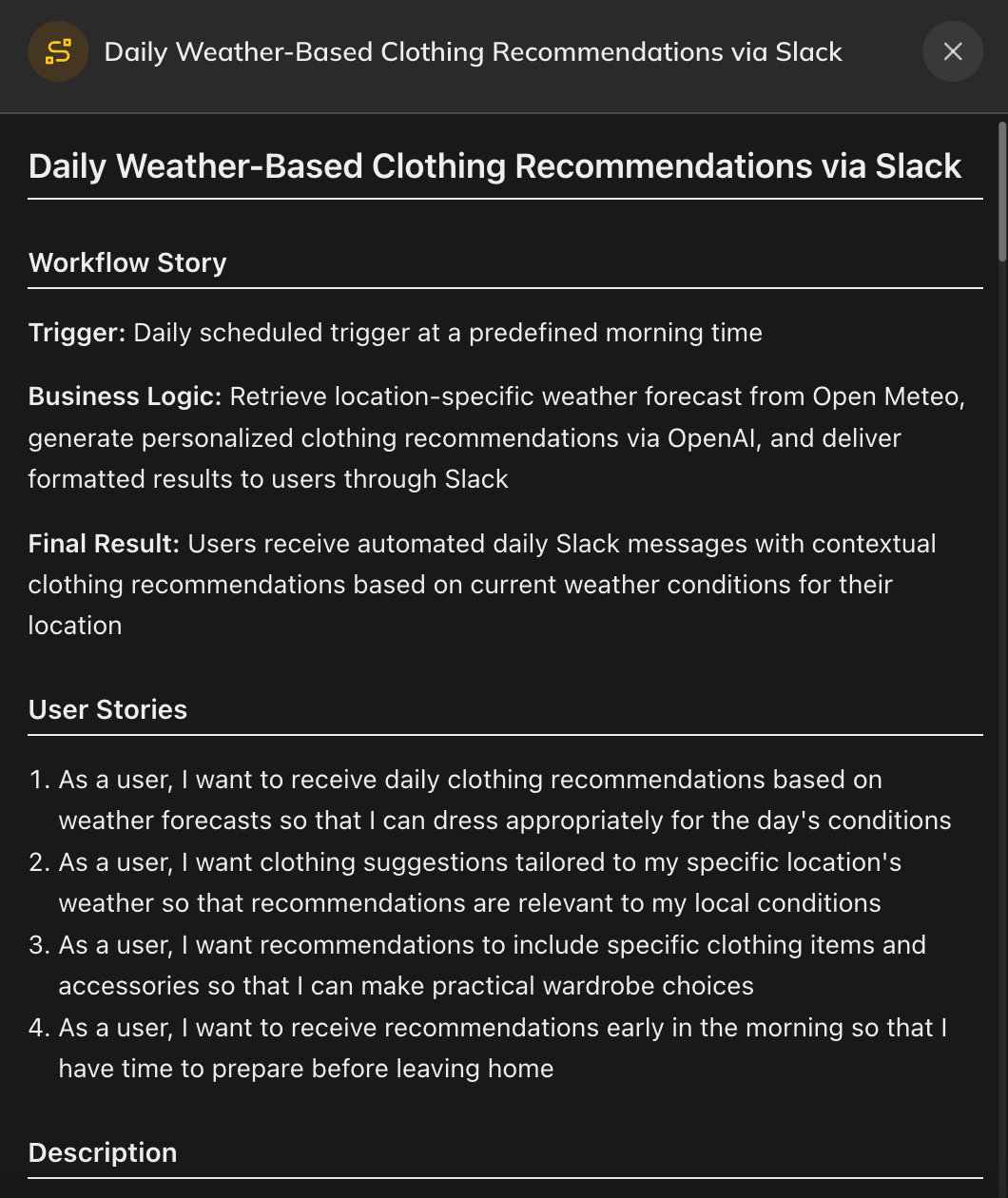
If you have carried out research and generated workflows during planning, those workflows appear as cards in the conversation. Each card has a Build button that switches the toggle to Build and sends the workflow’s prompt for you — the agent automatically reads the research and workflow specification produced during planning.Workflow cards only appear in the chat if workflows have been generated after carrying out research in Plan mode.
- Workflow story — an overview of what the workflow achieves
- User stories — individual criteria highlighting specific logical requirements
- Description — a summary of the workflow
- Prompt — the prompt used when selecting the workflow
- Acceptance criteria — the capabilities the workflow must deliver
- Systems deep dive — system and authentication details
- Trigger — the trigger type that initiates the workflow
- API endpoints — the endpoints used in the integration
- Data flow architecture — the sequential steps describing how data passes through the workflow
- Transformations — a table of data mappings between systems
Build Workflows
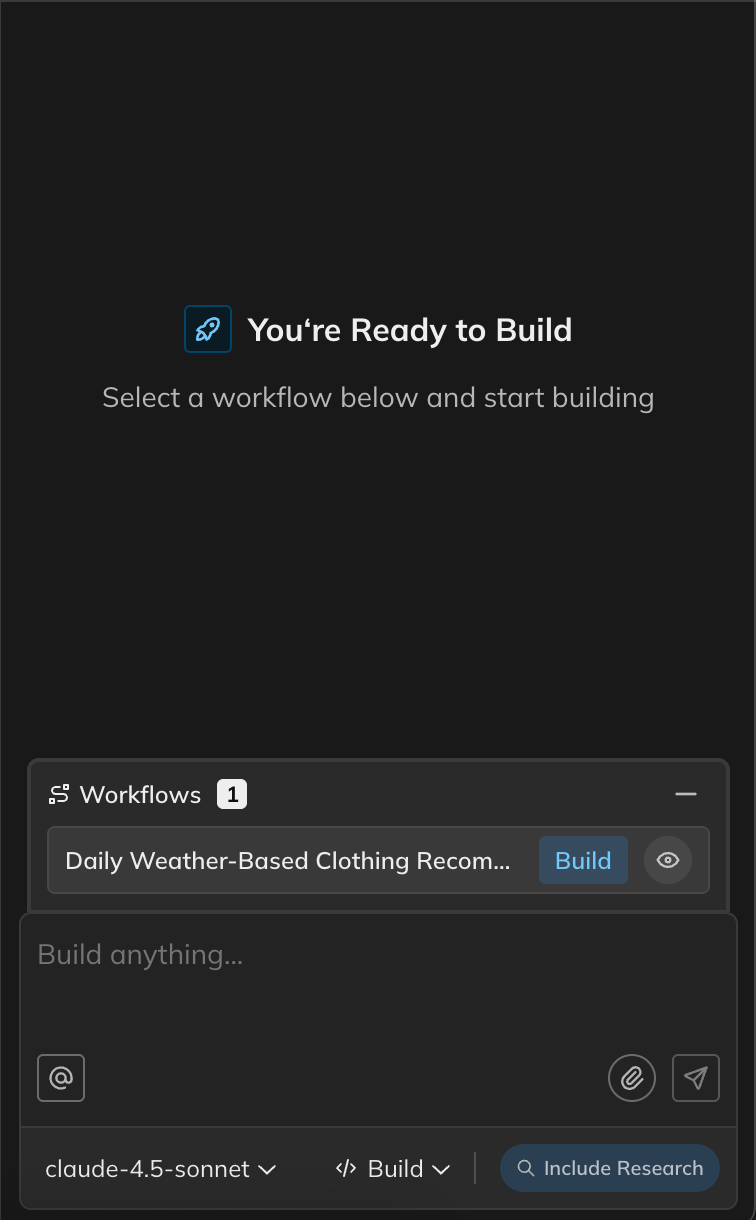
Workflow Information
Prompting best practices
Effective prompting helps the agent produce accurate, well-structured integration code. Follow these guidelines to get the best results.- Be clear and concise: Provide detailed requirements without unnecessary noise.
- Be specific about scope: When editing part of an integration, specify the exact workflow and step. You can do this
by:
- Using the edit step function in Flow mode
- Using the @ button to select a specific file in the chat textbox
- Manually naming the workflow and step in your prompt
- Attach supporting context: Additional attachments such as API documentation or example payloads give the agent more context to work with.
- Start new chats for new topics: Opening a new chat when switching to a different issue or area of the code keeps the conversation focused. See Managing multiple chats below.
- Include error logs: If you are debugging, include relevant error logs in your prompt to help the agent diagnose the issue.
- Use Question mode for queries: When you only want to ask the agent about your code without making changes, use Question mode to prevent unintended edits.
Managing multiple chats
When working with AI-assisted tools, keeping separate chats for separate tasks is one of the most effective habits you can develop. The chat toolbar lets you create and switch between multiple chat sessions using the + button and the chat history panel — each session covers both planning and building.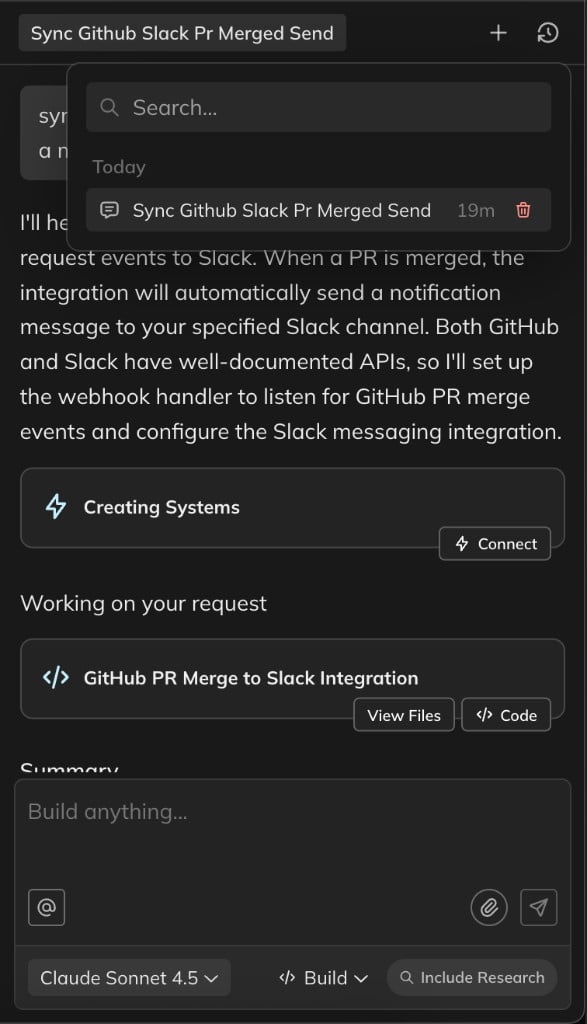
Use the + button to start a new chat and the history panel to switch between existing sessions
- Context dilution: The agent may lose sight of your current goal when earlier, unrelated instructions compete for attention in a long conversation.
- Conflicting instructions: Fixes or changes from an earlier part of the chat can contradict what you need now, causing the agent to produce inconsistent results.
- Slower responses: Larger context windows require more processing, which can increase response times.