

Skills belong to an organisation, not to an individual integration. Open Skills in the left-hand navigation
to see everything your organisation has.
Marketplace
Add a ready-made skill from the Versori catalogue.
Manage skills
Upload a skill your team has written.
What a skill contains
A skill is a small bundle of Markdown files:The SKILL.md file
SKILL.md begins with a YAML frontmatter block followed by the guidelines themselves, written in Markdown.
SKILL.md
string
required
A short, unique name for the skill, shown in your organisation’s skill list.
string
required
One line describing what the skill covers and when the AI should apply it. The AI uses this to decide whether
the skill is relevant to the work in front of it, so make it specific.
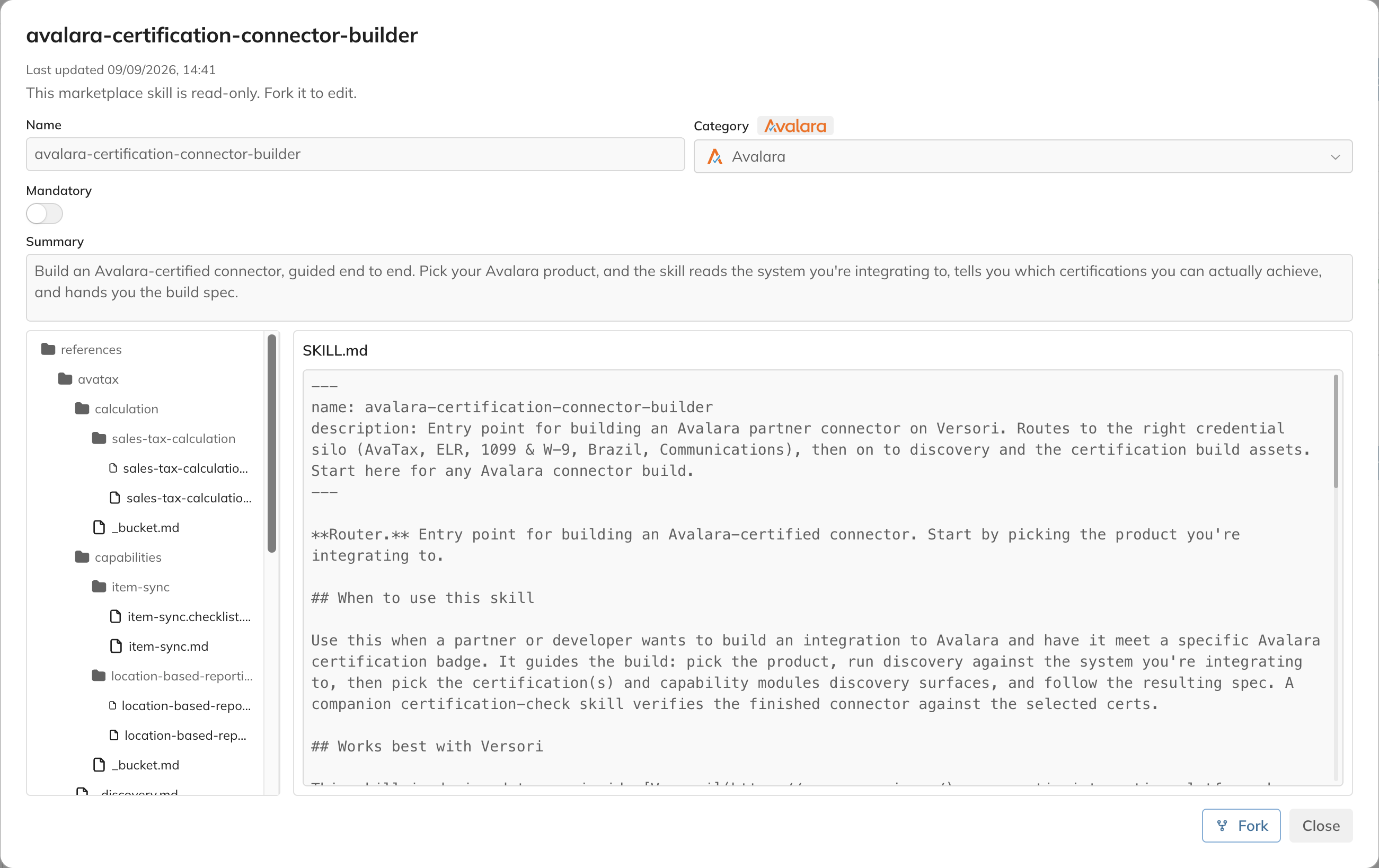
A skill bundle is a SKILL.md index plus any resource files it references
How the AI applies skills
Adding a skill to your organisation is what makes it available: there is no separate step to attach it to a project or an integration. Every skill on your Skills page can be used by the AI. What differs is how each one reaches the model. Every skill is either Optional or Mandatory, shown as a badge on its card:Optional
The default. The AI sees the skill’s name and
description, and reads the full skill only when the
description matches the work it is doing.Mandatory
The skill’s full contents go into every request, whether or not the AI judges it relevant.
description is usually enough for the AI to find a skill at the right
moment, and it leaves more room for your own project’s context. Reserve Mandatory for rules that must never be
missed, such as compliance requirements, and keep those skills short.
Some skills are built into the platform and always available. They are not listed alongside your organisation’s
skills, and cannot be edited or removed.
Related docs
- Skills Marketplace: add a ready-made skill from the Versori catalogue
- Manage Your Skills: upload, update, and remove your own skills
- Versori Skill: the built-in
coding-versori-sdkskill that ships with the CLI - Plan agent: how Versori plans integrations