> ## Documentation Index
> Fetch the complete documentation index at: https://docs.versori.com/llms.txt
> Use this file to discover all available pages before exploring further.
# Security
> How to authenticate with Versori APIs.
This section provides an overview of how to authenticate with Versori APIs, including the different authentication
methods available and how to use them.
# Signing Keys
The first step is that you should generate a signing key for your organisation. These can be generated by clicking on
the My Account button and then the View Account button. On the signing keys tab you can create a new key using the
button. On key creation, you will be able to copy or download your private key as a .pem file. Note that once you leave
the page, you will be unable to view your private key ever again. You should keep the private key secret, obviously!
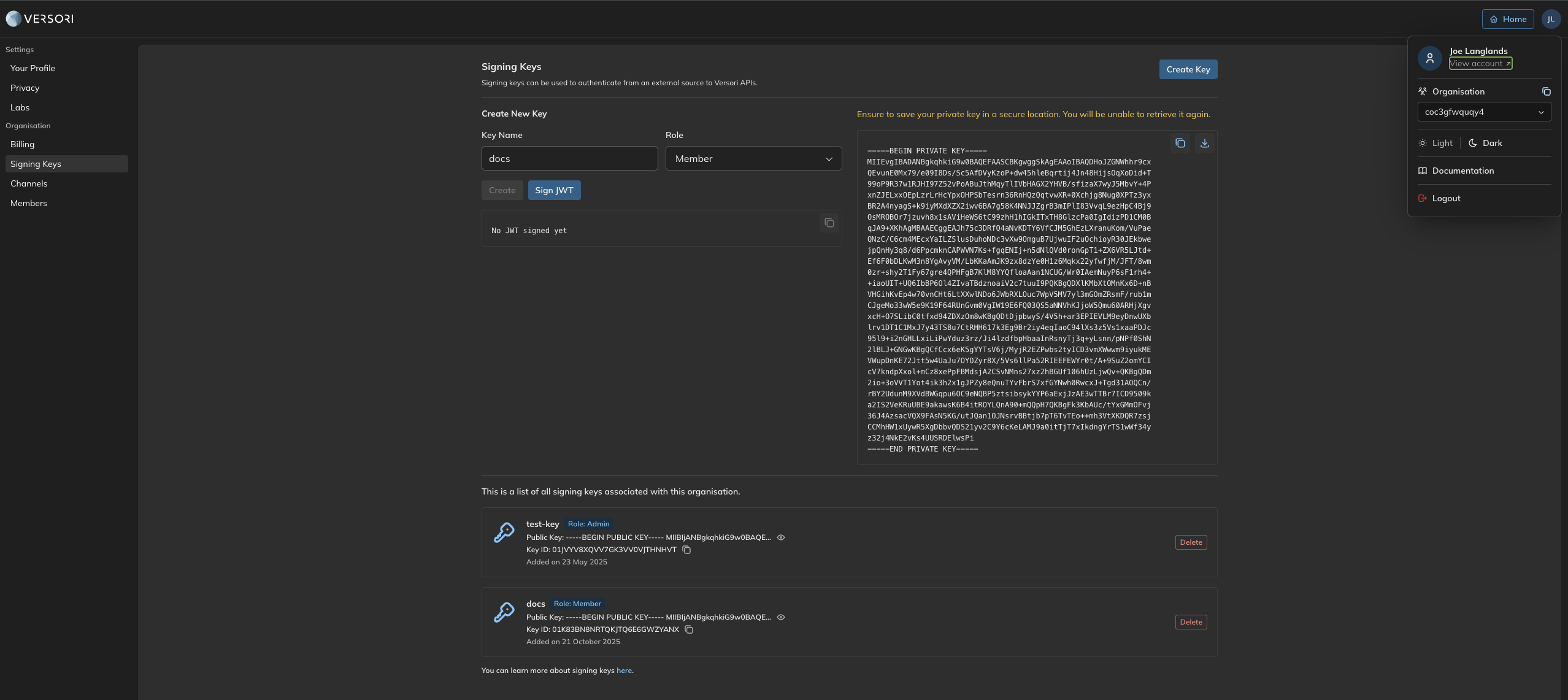 The keys are in PKCS #8 format. It is with this private key that your backend should use to sign JWTs for your end users
when making requests to Versori APIs.
# JWTs
When making calls to Versori APIs to create a user, activating users, manage connections etc, you need to sign a JWT
with your organisations private key and make the subject your end users external ID. An example is given below in type
script using the `jose` library.
```typescript theme={null}
import { importPKCS8, SignJWT } from 'jose';
const key = await importPKCS8(privateKey, 'RS256');
const ISSUER = `https://versori.com/sk/${signingkeyId}`;
const token = await new SignJWT({ sub: externalId })
.setIssuer(ISSUER)
.setIssuedAt()
.setExpirationTime('1 hour')
.setProtectedHeader({ alg: 'RS256' })
.sign(key);
```
Then you can authenticate calls to Versori API’s by setting the `Authorization` header to a value of
`JWT `, for example:
```bash theme={null}
curl -X GET https://platform.versori.com/api/v2/o//users/
-H "Authorization: JWT "
```
You can find your singingkeyId on the signing key page, shown above, to set the issuer claim.
The keys are in PKCS #8 format. It is with this private key that your backend should use to sign JWTs for your end users
when making requests to Versori APIs.
# JWTs
When making calls to Versori APIs to create a user, activating users, manage connections etc, you need to sign a JWT
with your organisations private key and make the subject your end users external ID. An example is given below in type
script using the `jose` library.
```typescript theme={null}
import { importPKCS8, SignJWT } from 'jose';
const key = await importPKCS8(privateKey, 'RS256');
const ISSUER = `https://versori.com/sk/${signingkeyId}`;
const token = await new SignJWT({ sub: externalId })
.setIssuer(ISSUER)
.setIssuedAt()
.setExpirationTime('1 hour')
.setProtectedHeader({ alg: 'RS256' })
.sign(key);
```
Then you can authenticate calls to Versori API’s by setting the `Authorization` header to a value of
`JWT `, for example:
```bash theme={null}
curl -X GET https://platform.versori.com/api/v2/o//users/
-H "Authorization: JWT "
```
You can find your singingkeyId on the signing key page, shown above, to set the issuer claim.