> ## Documentation Index
> Fetch the complete documentation index at: https://docs.versori.com/llms.txt
> Use this file to discover all available pages before exploring further.
# Issue Watcher: Fixes Proposed From Real Failures
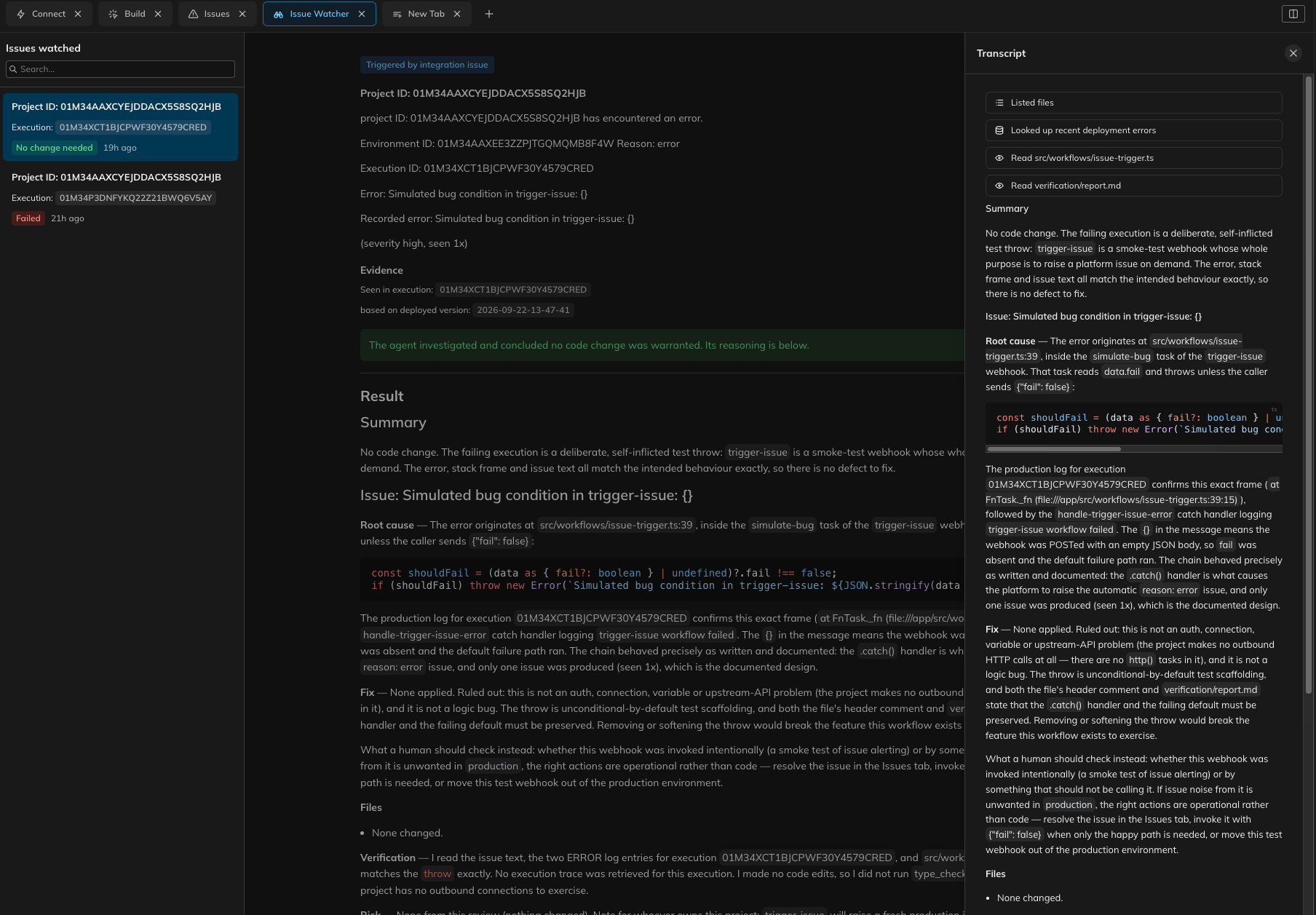
Issue Watcher runs alongside a deployed integration and investigates it when it fails. When your integration raises an issue,
the agent reads the code that is actually deployed, works out what went wrong from the failing execution, and proposes a fix — saved as a version with a written report for you to review.
 ## What happens when an integration fails
When a deployed integration errors, the platform raises an issue against it. If an Issue Watcher agent is watching
that environment, the issue is handed to the agent and an investigation starts:
1. **It starts from what is deployed.** The agent loads the version currently running in that environment, not the
files you have open. It is looking at the code that actually failed.
2. **It reads the failure.** The failing execution's trace and error logs are gathered before the agent starts, so it
works from evidence rather than guesswork.
3. **It checks its thinking against the real API.** The agent can make read-only calls to the systems your integration
connects to, through the same credentials the integration uses. Credentials are never visible to the agent.
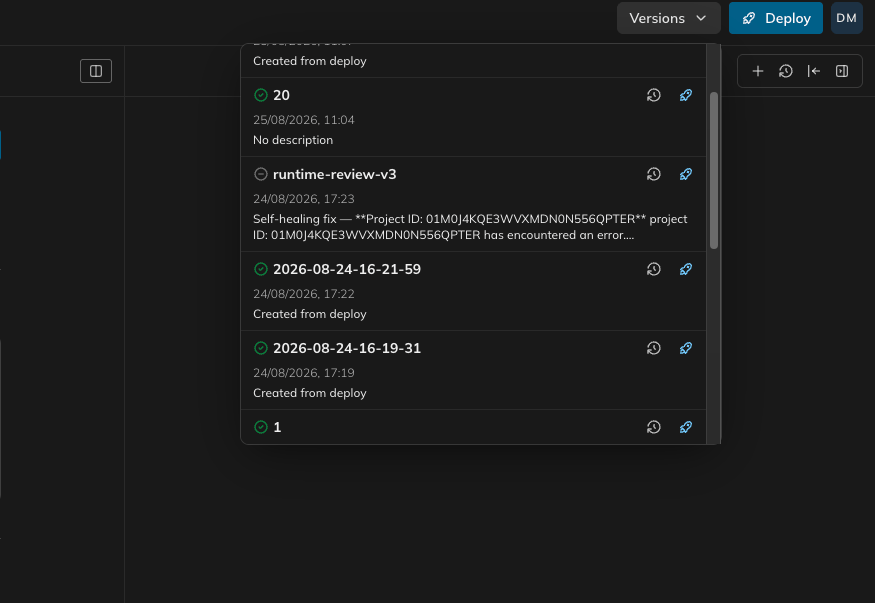
4. **It proposes the smallest fix.** The change is type-checked, then saved as a draft version named
`runtime-review-v1`, along with a report explaining what it found.
Issue Watcher only investigates failures that originiate from your integration‘s core code. Issues that an agent is unable to fix, for example; infratstructure related errors, will require manual triage. For support, queries can be raised by email through [support@versori.com](mailto:support@versori.com)
## Nothing deploys automatically
The agent never deploys, and never overwrites the files you are working on. The output from the agents work is created as a version, which you deploy exactly as you would deploy your own work.
## What happens when an integration fails
When a deployed integration errors, the platform raises an issue against it. If an Issue Watcher agent is watching
that environment, the issue is handed to the agent and an investigation starts:
1. **It starts from what is deployed.** The agent loads the version currently running in that environment, not the
files you have open. It is looking at the code that actually failed.
2. **It reads the failure.** The failing execution's trace and error logs are gathered before the agent starts, so it
works from evidence rather than guesswork.
3. **It checks its thinking against the real API.** The agent can make read-only calls to the systems your integration
connects to, through the same credentials the integration uses. Credentials are never visible to the agent.
4. **It proposes the smallest fix.** The change is type-checked, then saved as a draft version named
`runtime-review-v1`, along with a report explaining what it found.
Issue Watcher only investigates failures that originiate from your integration‘s core code. Issues that an agent is unable to fix, for example; infratstructure related errors, will require manual triage. For support, queries can be raised by email through [support@versori.com](mailto:support@versori.com)
## Nothing deploys automatically
The agent never deploys, and never overwrites the files you are working on. The output from the agents work is created as a version, which you deploy exactly as you would deploy your own work.
 Keeping that step manual maintains trust. The agent has the trace and the code, but it does not
know your release schedule, whether the failing endpoint is being retired, or whether a mapping that looks wrong is
the one your partner asked for. The report is written to be reviewed in a minute or two, so that judgement stays with
you.
## Reading the outcome
Each investigation ends in one of these states:
* **Queued**: Waiting for capacity. The investigation starts shortly.
* **Reviewing**: The investigation is running.
* **Fix ready**: The agent found the cause and has proposed a change. Review the report and the diff, then deploy the
draft version if you agree with it.
* **No change needed**: The agent investigated and concluded that no code change would help. This is a normal,
successful outcome — revoked credentials, a missing configuration value, or an upstream system returning errors are
all real findings with nothing to fix in your workflow. The report explains what it found.
* **Needs input**: Something has to be configured before the agent can continue.
* **Superseded**: A proposed fix that was overtaken — someone deployed a different version after it was written, so it
is out of date. The next failure starts a fresh investigation from what is deployed now.
* **Failed**: The investigation itself could not complete.
Every investigation also keeps a full transcript of what the agent did — the files it read, the searches it ran, the
API calls it made and the checks it performed. Select **View transcript** on any run to open it. The report is the
agent‘s conclusion; the transcript is the evidence behind it.
## Setting it up
Issue Watcher is enabled per organisation. Once it is available to you, open your integration‘s **Issues** tab and
select **Watch issues**.
Keeping that step manual maintains trust. The agent has the trace and the code, but it does not
know your release schedule, whether the failing endpoint is being retired, or whether a mapping that looks wrong is
the one your partner asked for. The report is written to be reviewed in a minute or two, so that judgement stays with
you.
## Reading the outcome
Each investigation ends in one of these states:
* **Queued**: Waiting for capacity. The investigation starts shortly.
* **Reviewing**: The investigation is running.
* **Fix ready**: The agent found the cause and has proposed a change. Review the report and the diff, then deploy the
draft version if you agree with it.
* **No change needed**: The agent investigated and concluded that no code change would help. This is a normal,
successful outcome — revoked credentials, a missing configuration value, or an upstream system returning errors are
all real findings with nothing to fix in your workflow. The report explains what it found.
* **Needs input**: Something has to be configured before the agent can continue.
* **Superseded**: A proposed fix that was overtaken — someone deployed a different version after it was written, so it
is out of date. The next failure starts a fresh investigation from what is deployed now.
* **Failed**: The investigation itself could not complete.
Every investigation also keeps a full transcript of what the agent did — the files it read, the searches it ran, the
API calls it made and the checks it performed. Select **View transcript** on any run to open it. The report is the
agent‘s conclusion; the transcript is the evidence behind it.
## Setting it up
Issue Watcher is enabled per organisation. Once it is available to you, open your integration‘s **Issues** tab and
select **Watch issues**.
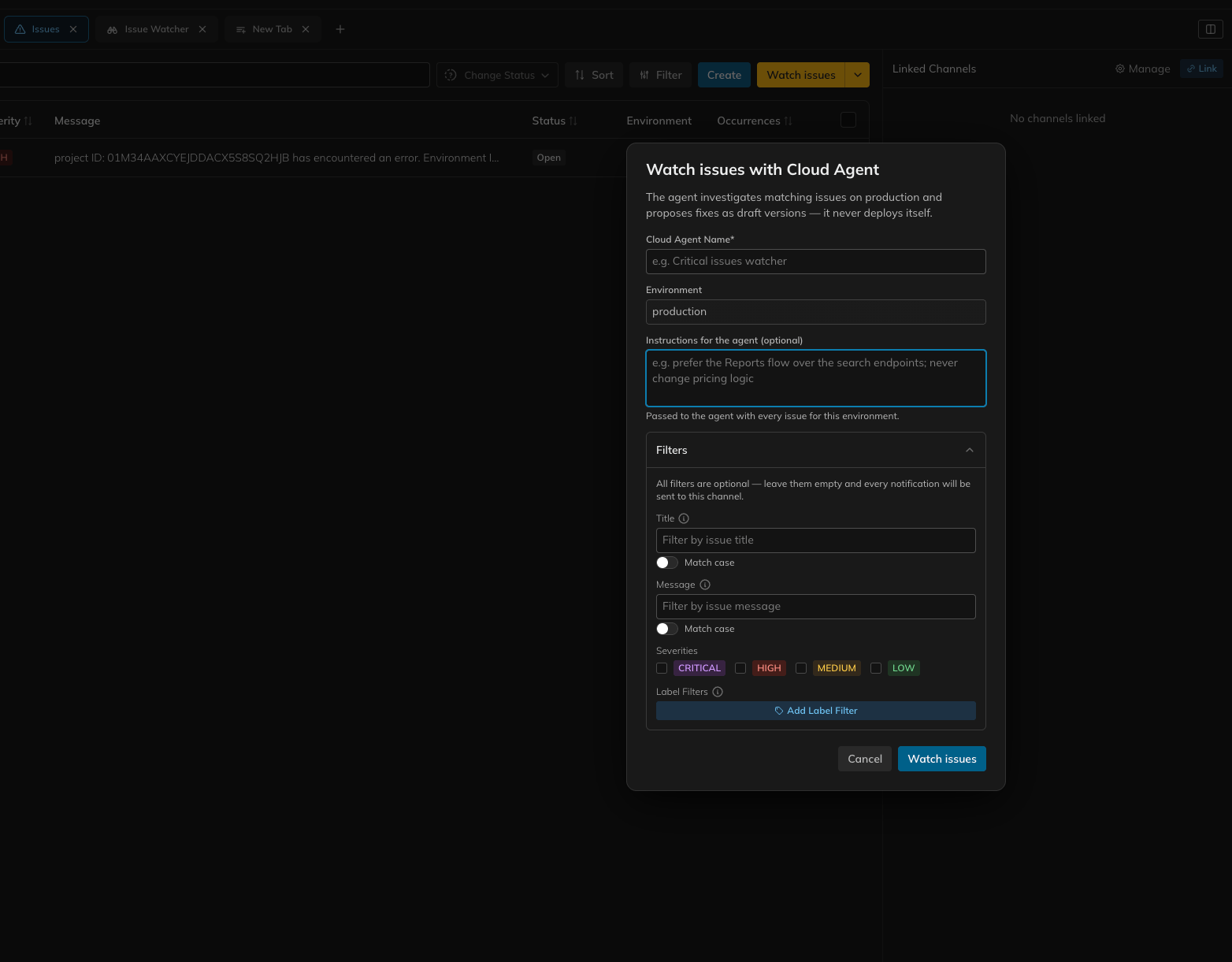 In the dialog you set:
* **Name**: How the agent appears in **Cloud Agents** in organisation settings.
* **Environment**: Which environment of this integration to watch. An environment can have one agent watching it.
* **Instructions**: Standing guidance the agent follows on every investigation — for example, *prefer the Reports
endpoint over the search endpoints*, or *never change pricing logic*. Instructions belong to the agent, so they
apply everywhere that agent is attached.
* **Filters**: Which issues this agent should respond to, by severity, title, message or label. Leave them empty and
the agent investigates every issue. Filters belong to this attachment, so the same agent can watch critical issues
on one integration and everything on another.
If your organisation already has an agent, use the chevron next to **Watch issues** to attach it instead of creating a
new one. Selecting an existing agent shows you its instructions before you attach it, so you are not picking from
indistinguishable names.
Attaching the agent is what starts it working. Creating an agent without attaching it to an environment does
nothing.
Once attached, the button reads **Stop watching issues**, and the agent starts investigating the next matching issue
this environment raises.
## Changing or stopping it
**Instructions** belong to the agent, not to this integration. Editing them under **Cloud Agents** in organisation
settings changes how the agent behaves everywhere it is attached.
**Filters** belong to this attachment, and are set at the point you attach the agent.
**Stop watching issues** detaches the agent from this environment. The agent and its instructions stay in your
organisation, and any investigations it has already produced stay in the **Issue Watcher** tab — detaching stops new
work, it does not remove past work.
Filters are not kept when you detach. If you attach the same agent again, you set its filters again.
## Getting notified by email
Issue Watcher emails you when an investigation finishes — either that a fix is ready to review, or that the agent
looked and no change was needed.
You receive that email if an **email notification channel is linked to the same environment**, and it goes to whoever
that channel already notifies. The principle is that whoever was told the integration broke is told it has been looked
at — the same people, in the same place.
If no email channel is linked to that environment, no email is sent. The investigation still runs and its outcome
is still waiting in the **Issue Watcher** tab — no email never means no fix.
## What Issue Watcher will not do
* **It will not deploy.** Every change is a draft version until you deploy it.
* **It will not write to your connected systems.** The agent can read from them to understand a failure, but it cannot
create, update or delete anything in Shopify, NetSuite or any other system you have connected.
* **It will not touch another organisation's work.** Each investigation is scoped to the integration and environment
the issue came from.
* **It will not act on instructions it finds in your data.** Issue text, error messages and API responses are treated
as evidence, not as commands. Anything in them that tries to change how the agent works is reported rather than
followed.
## Limits
One investigation runs at a time per integration, so two failures never put two agents to work on the same code at
once.
There is also a cap on how many investigations an integration can start in an hour. Failures past that cap are not
investigated, and they are not held over for later — a burst of errors produces one investigation, not one per error.
The issues themselves are still recorded in the **Issues** tab either way, so nothing about the failure is lost.
The same issue is investigated at most three times. If three attempts have not produced a fix, the problem needs a
person.
## What to do next
Review a proposal the same way you would review a colleague‘s: read the report, look at the diff, and check the
transcript if you want to see how the agent reached its conclusion. If you agree with the change, deploy the draft
version. If you do not, leave it — deploying something else supersedes it, and the next investigation starts from
whatever is live.
In the dialog you set:
* **Name**: How the agent appears in **Cloud Agents** in organisation settings.
* **Environment**: Which environment of this integration to watch. An environment can have one agent watching it.
* **Instructions**: Standing guidance the agent follows on every investigation — for example, *prefer the Reports
endpoint over the search endpoints*, or *never change pricing logic*. Instructions belong to the agent, so they
apply everywhere that agent is attached.
* **Filters**: Which issues this agent should respond to, by severity, title, message or label. Leave them empty and
the agent investigates every issue. Filters belong to this attachment, so the same agent can watch critical issues
on one integration and everything on another.
If your organisation already has an agent, use the chevron next to **Watch issues** to attach it instead of creating a
new one. Selecting an existing agent shows you its instructions before you attach it, so you are not picking from
indistinguishable names.
Attaching the agent is what starts it working. Creating an agent without attaching it to an environment does
nothing.
Once attached, the button reads **Stop watching issues**, and the agent starts investigating the next matching issue
this environment raises.
## Changing or stopping it
**Instructions** belong to the agent, not to this integration. Editing them under **Cloud Agents** in organisation
settings changes how the agent behaves everywhere it is attached.
**Filters** belong to this attachment, and are set at the point you attach the agent.
**Stop watching issues** detaches the agent from this environment. The agent and its instructions stay in your
organisation, and any investigations it has already produced stay in the **Issue Watcher** tab — detaching stops new
work, it does not remove past work.
Filters are not kept when you detach. If you attach the same agent again, you set its filters again.
## Getting notified by email
Issue Watcher emails you when an investigation finishes — either that a fix is ready to review, or that the agent
looked and no change was needed.
You receive that email if an **email notification channel is linked to the same environment**, and it goes to whoever
that channel already notifies. The principle is that whoever was told the integration broke is told it has been looked
at — the same people, in the same place.
If no email channel is linked to that environment, no email is sent. The investigation still runs and its outcome
is still waiting in the **Issue Watcher** tab — no email never means no fix.
## What Issue Watcher will not do
* **It will not deploy.** Every change is a draft version until you deploy it.
* **It will not write to your connected systems.** The agent can read from them to understand a failure, but it cannot
create, update or delete anything in Shopify, NetSuite or any other system you have connected.
* **It will not touch another organisation's work.** Each investigation is scoped to the integration and environment
the issue came from.
* **It will not act on instructions it finds in your data.** Issue text, error messages and API responses are treated
as evidence, not as commands. Anything in them that tries to change how the agent works is reported rather than
followed.
## Limits
One investigation runs at a time per integration, so two failures never put two agents to work on the same code at
once.
There is also a cap on how many investigations an integration can start in an hour. Failures past that cap are not
investigated, and they are not held over for later — a burst of errors produces one investigation, not one per error.
The issues themselves are still recorded in the **Issues** tab either way, so nothing about the failure is lost.
The same issue is investigated at most three times. If three attempts have not produced a fix, the problem needs a
person.
## What to do next
Review a proposal the same way you would review a colleague‘s: read the report, look at the diff, and check the
transcript if you want to see how the agent reached its conclusion. If you agree with the change, deploy the draft
version. If you do not, leave it — deploying something else supersedes it, and the next investigation starts from
whatever is live.