> ## Documentation Index
> Fetch the complete documentation index at: https://docs.versori.com/llms.txt
> Use this file to discover all available pages before exploring further.
# Quickstart
> Set up authentication and run your first CLI command.
After [installing](/latest/cli/installation) the Versori CLI, follow these steps to authenticate and start managing your resources.
Generate a JWT token from the [Versori console](https://ai.versori.com/account?content=keys) for the organisation you want to manage.
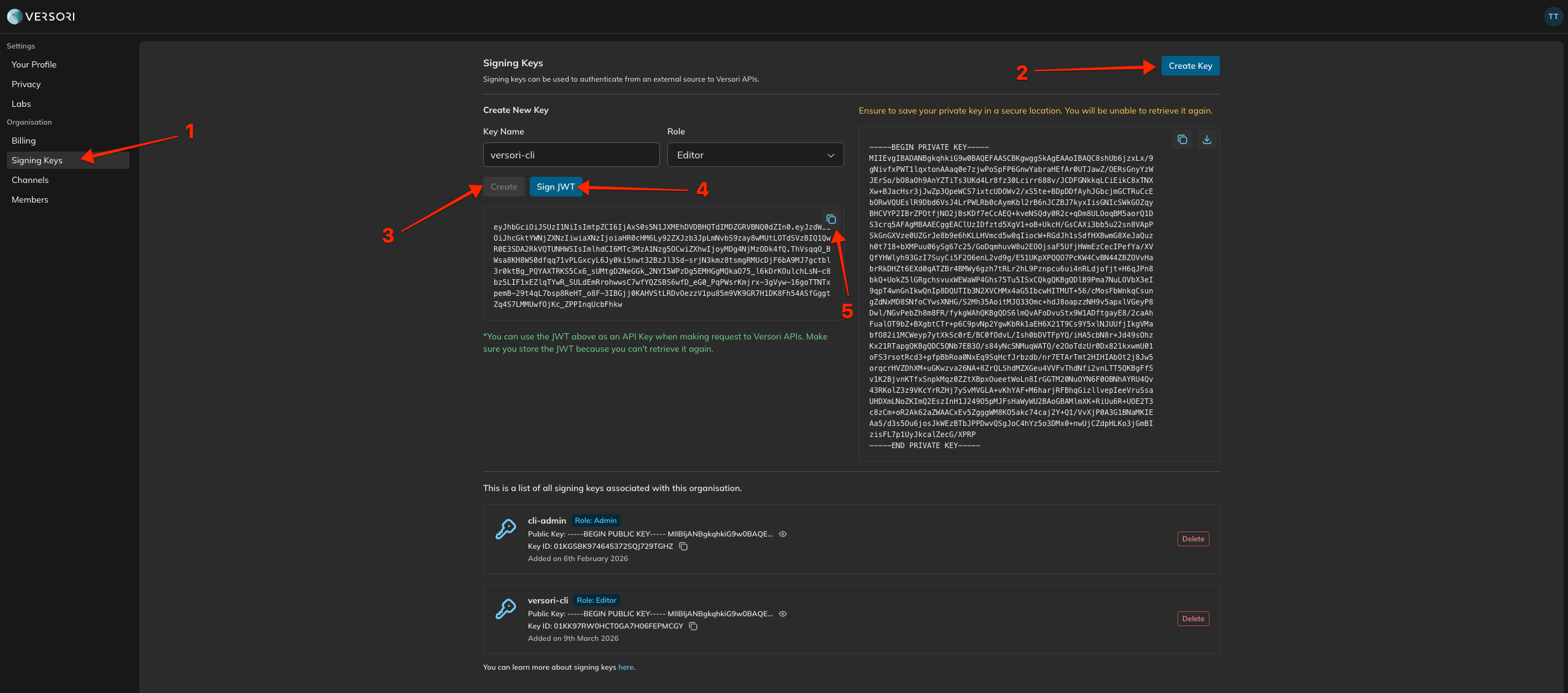 A context stores your authentication credentials for an organisation. You need a JWT token generated from the [Versori console](https://ai.versori.com/account?content=keys) for the organisation you want to manage.
```sh theme={null}
versori context add \
--name my-context \
--organisation \
--jwt
```
Pass in `--jwt -` to read the JWT from stdin.
Confirm the context was created and is active:
```sh theme={null}
versori context list
```
List the projects in your organisation:
```sh theme={null}
versori projects list
```
## Next steps
Follow a complete project lifecycle from creation to deployment.
Learn about the config file, contexts, and global flags.
A context stores your authentication credentials for an organisation. You need a JWT token generated from the [Versori console](https://ai.versori.com/account?content=keys) for the organisation you want to manage.
```sh theme={null}
versori context add \
--name my-context \
--organisation \
--jwt
```
Pass in `--jwt -` to read the JWT from stdin.
Confirm the context was created and is active:
```sh theme={null}
versori context list
```
List the projects in your organisation:
```sh theme={null}
versori projects list
```
## Next steps
Follow a complete project lifecycle from creation to deployment.
Learn about the config file, contexts, and global flags.